Sign off a custom item
A custom or engineered-to-order line waits on a chain of sign-offs, such as the drawing approval and the salesperson's check, before it is approved for production. See where each item is waiting, and sign the steps that are yours.
Watch this in the video (3:04)
Before you start
- Your system has approval chains switched on. Otherwise the Custom item approvals button is not shown.
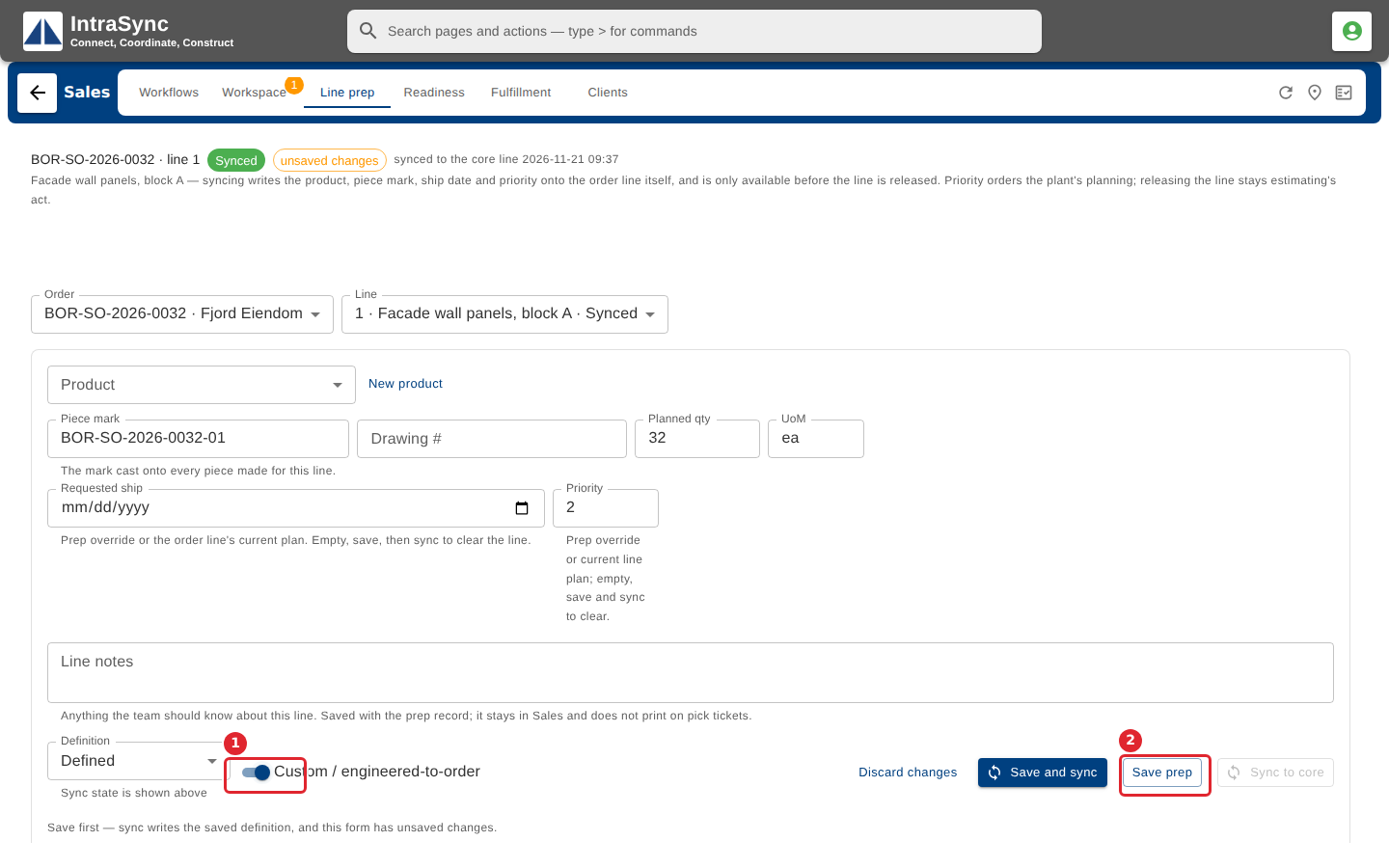
- The line is marked Custom / engineered-to-order in Line prep.
Steps
In the pictures, a numbered red box marks where to click or type. Where a picture has more than one box, the numbers give the order.
To make a line a custom item, open it in Line prep, switch on Custom / engineered-to-order, and select Save prep.
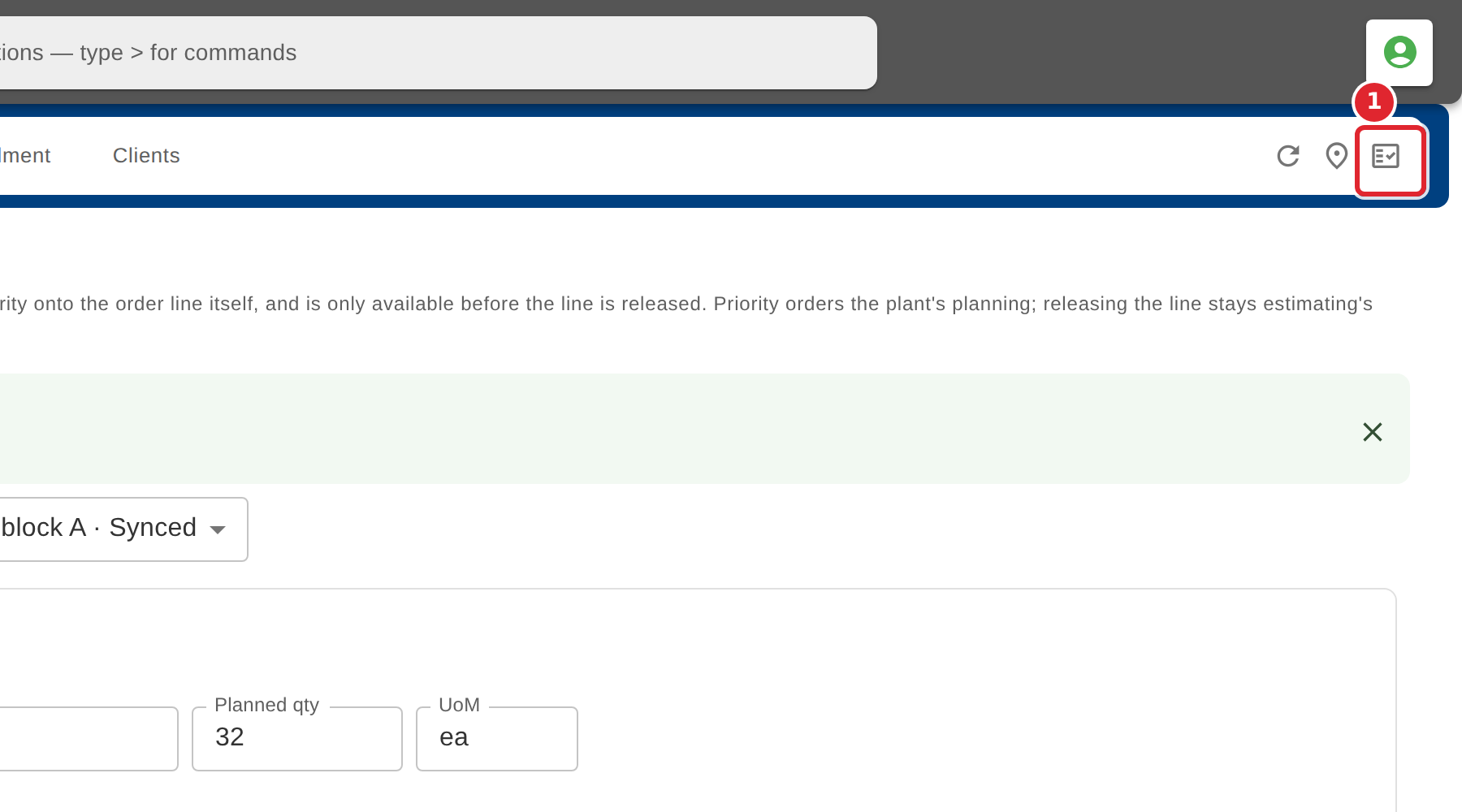
Select Custom item approvals at the top right of the hub.
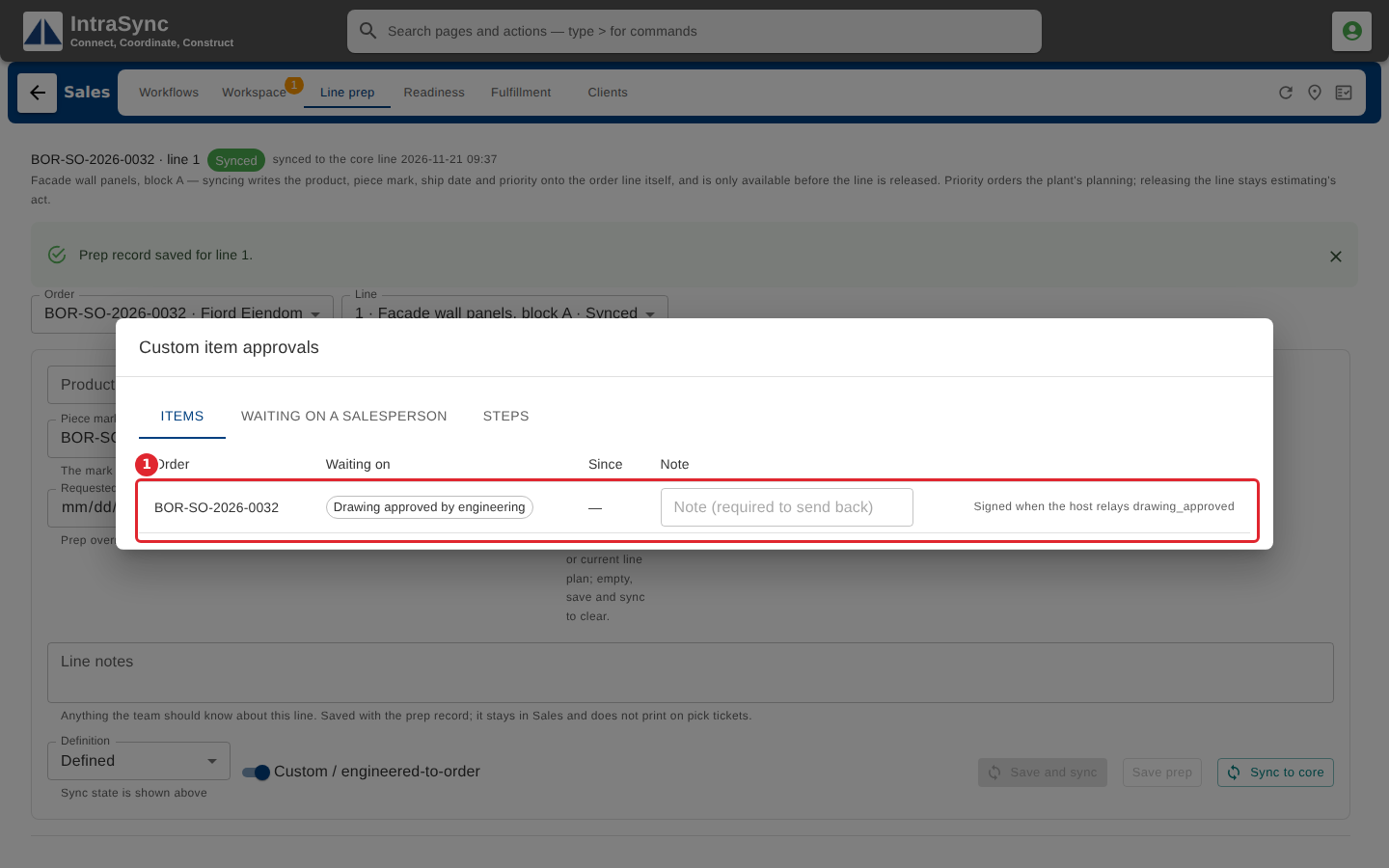
Items lists every custom item, the step it is waiting on and since when. A step signed by a host feed, such as engineering's drawing approval, has no Approve button: it is signed when the host relays it.
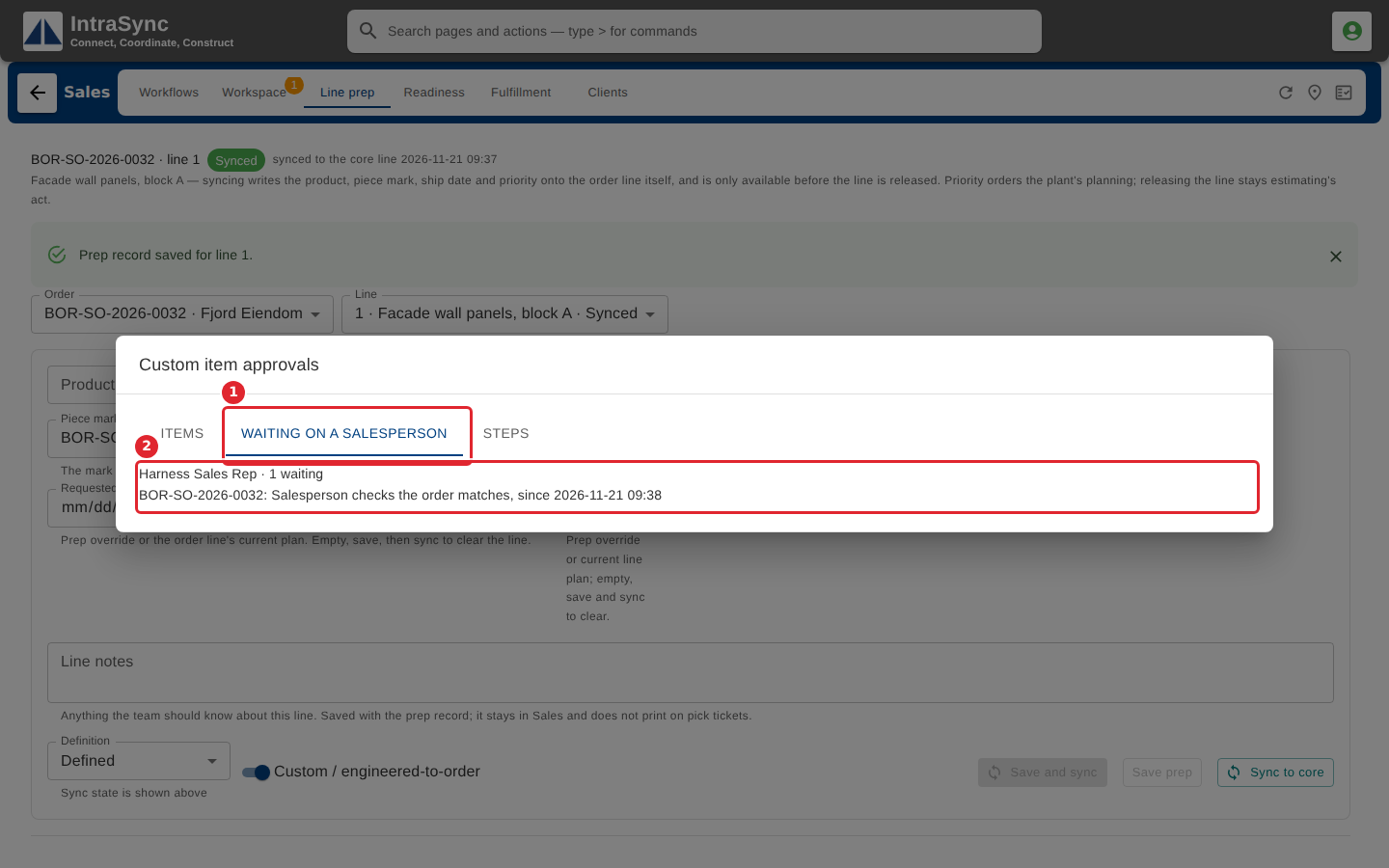
Select Waiting on a salesperson to see the items each salesperson still has to check, grouped by salesperson.
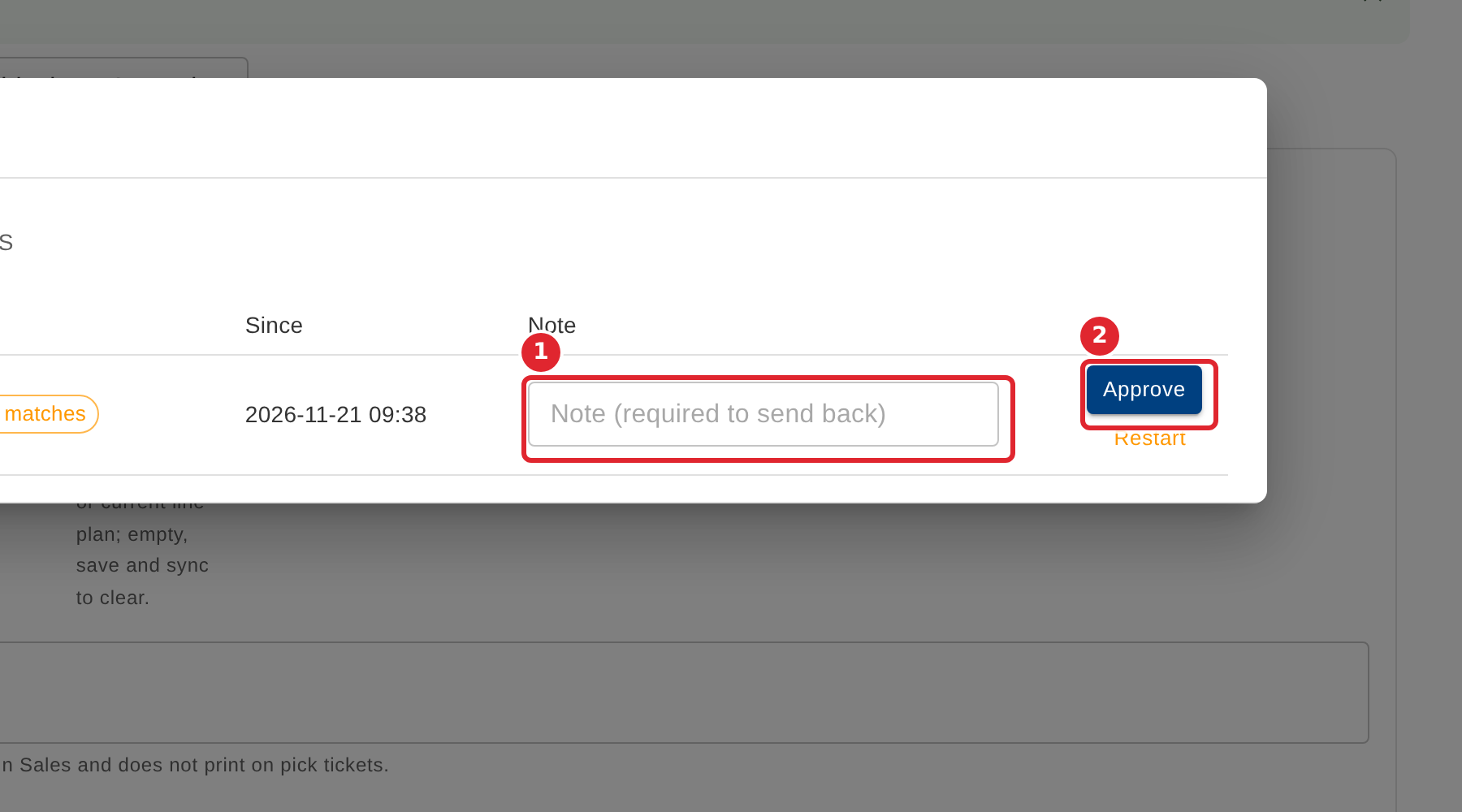
On Items, when the waiting step is yours to sign, select Approve on the item's row. To send an item back, type a note and select Send back.
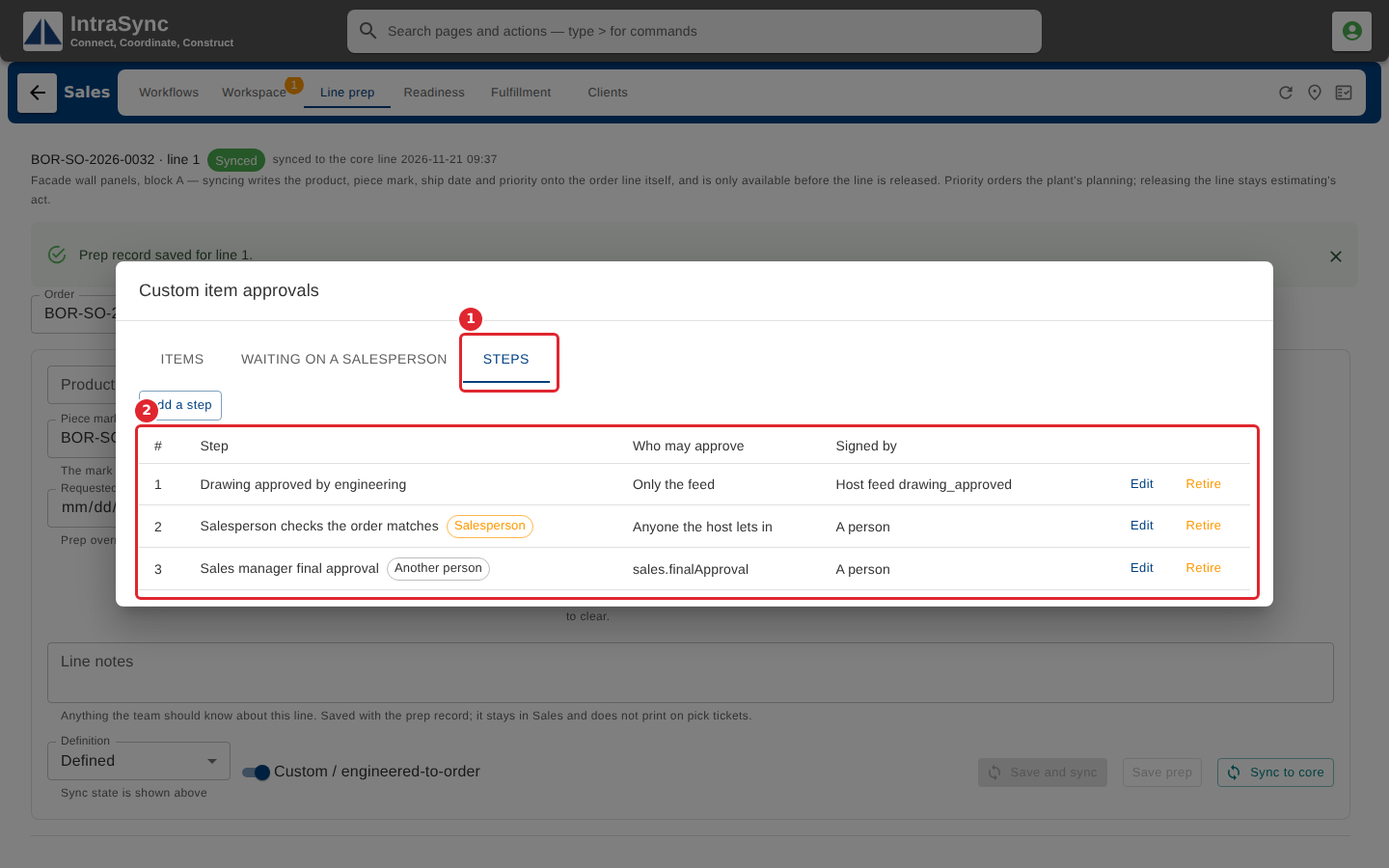
Select Steps to see your company's approval chain: each step in order, who may approve it, and whether a person or a host feed signs it.
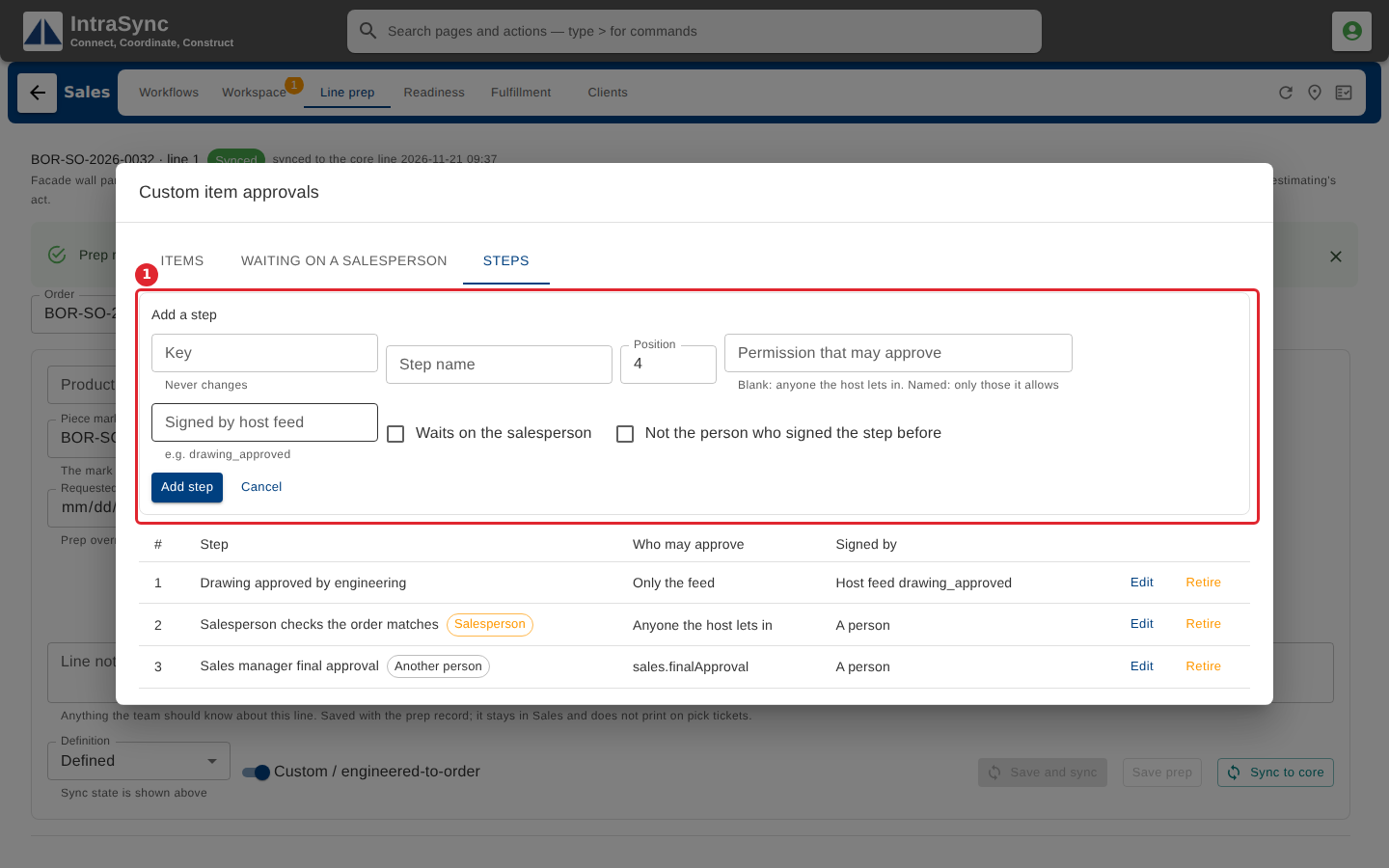
To add a step, select Add a step, fill in the form, and select Add step. To change a step, select Edit on its row; to take it out of the chain, select Retire.
Tips
- Each step is signed only by the people it allows. A salesperson's check is signed by the order's own salesperson. If anyone else selects Approve, the approval is refused and the item's row says why.
- Send back needs a note saying why. It is offered once the first step is signed, and never sends an item back onto a step that a host feed signs.
- Restart sends an item back to the first step, for example when a new drawing replaces the old one. It asks you to confirm first.
- A new step needs a key, a name and a position. The key uses lower-case letters, digits and underscores, starts with a letter, and never changes once the step is added. The position is a whole number.
- A retired step stays in the list, greyed out, and Restore puts it back in the chain.
- If you are not allowed to change the approval chain, saving a step is refused and the reason is shown.
- The approvals screen has no Close button. Press Esc, or select anywhere outside it, to close it.