Find your way around Yard Management
Yard Management keeps the record of the finished-goods yard: where every piece sits, how it moved, what came through the gate and what work is waiting. Start here to learn where everything is.
Watch this in the video (0:03)
Before you start
- You are signed in, and Yard Management is turned on for your company.
Steps
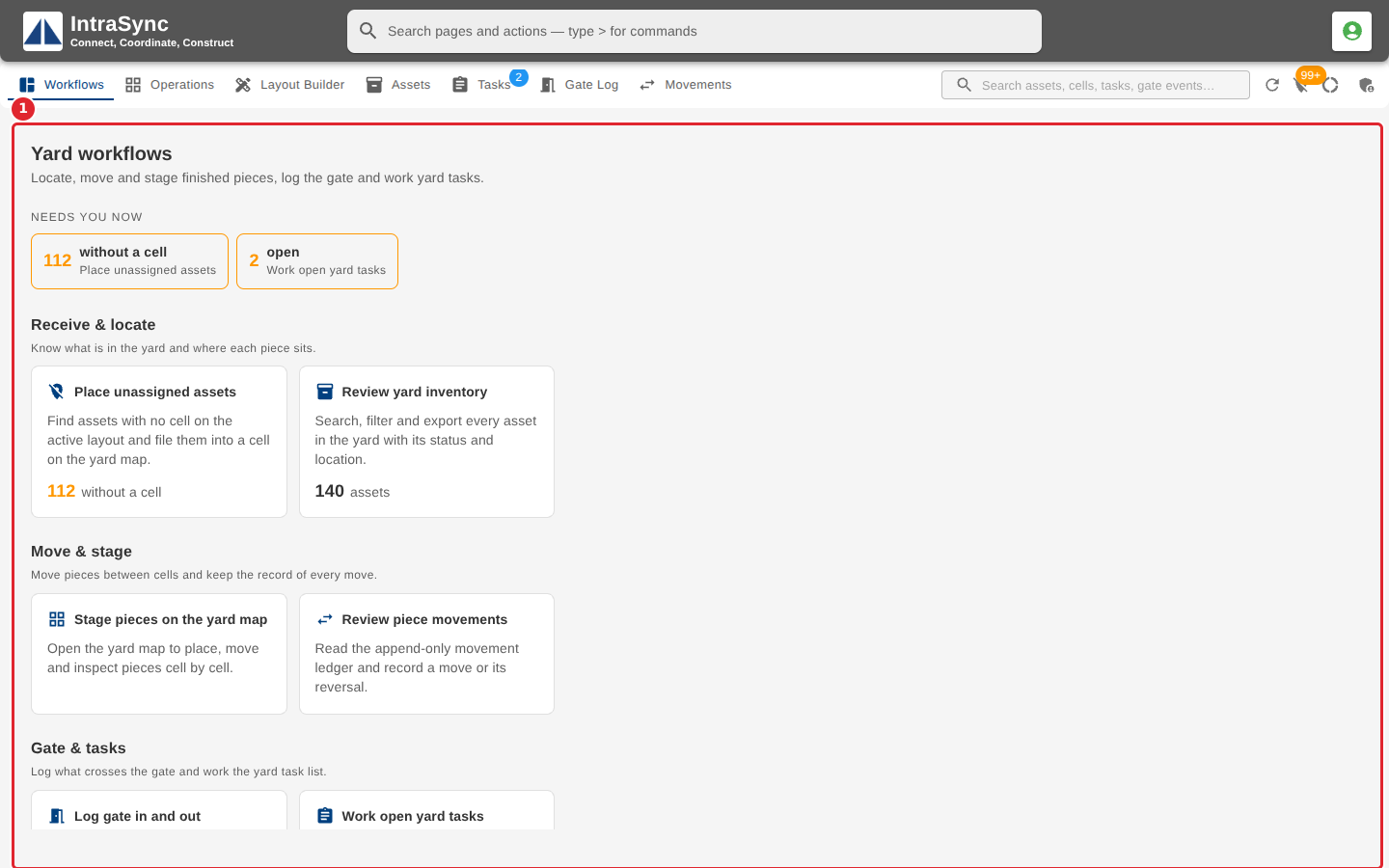
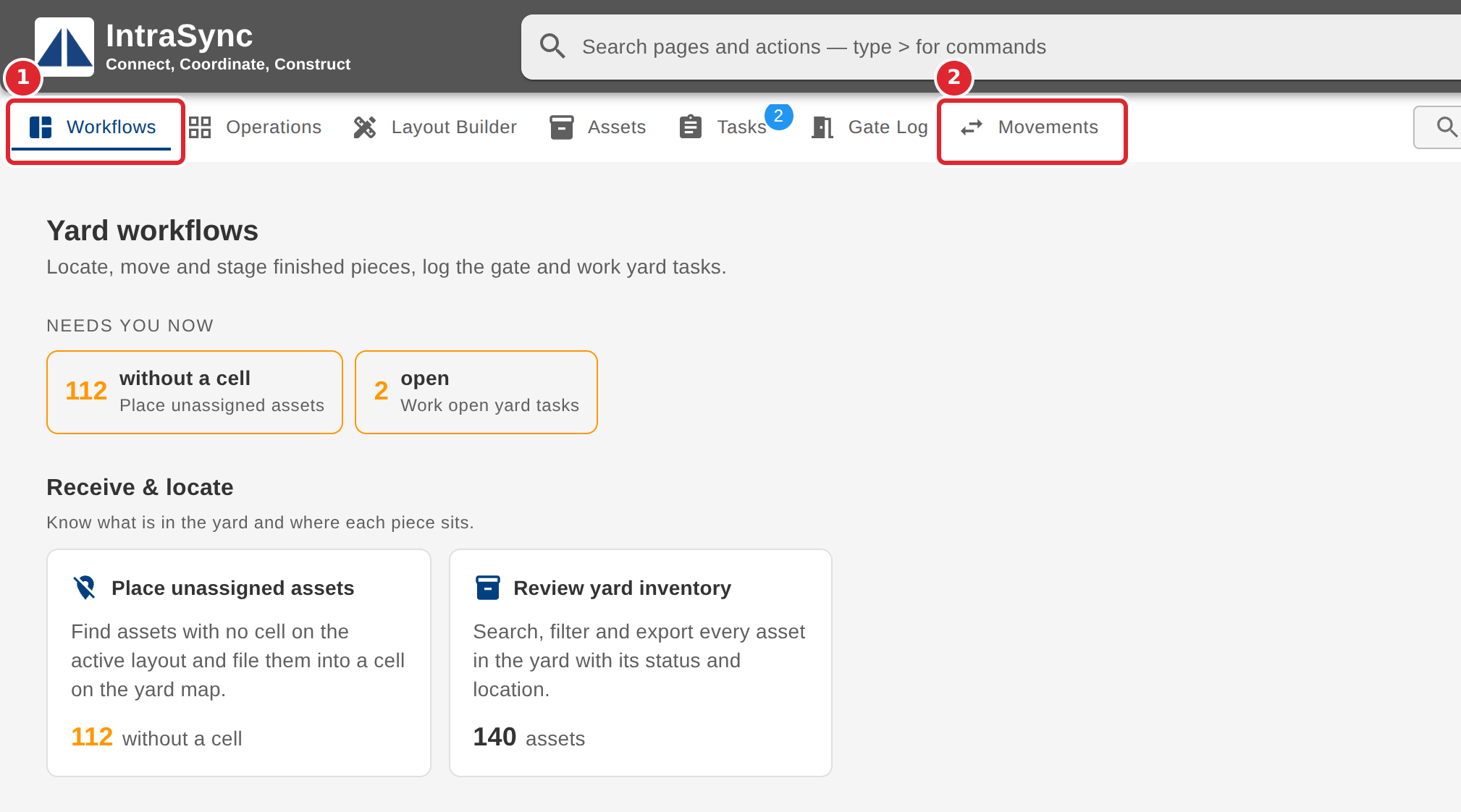
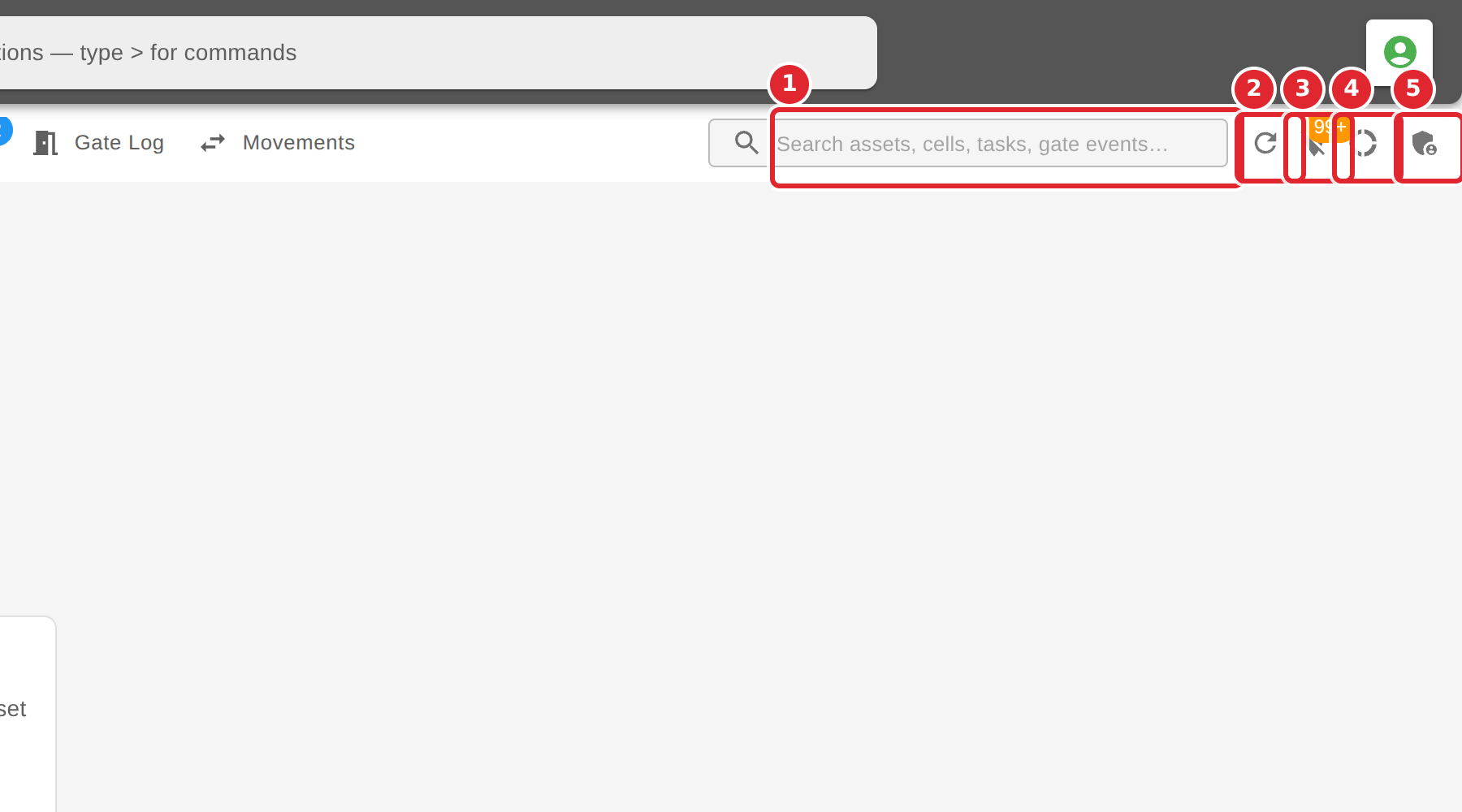
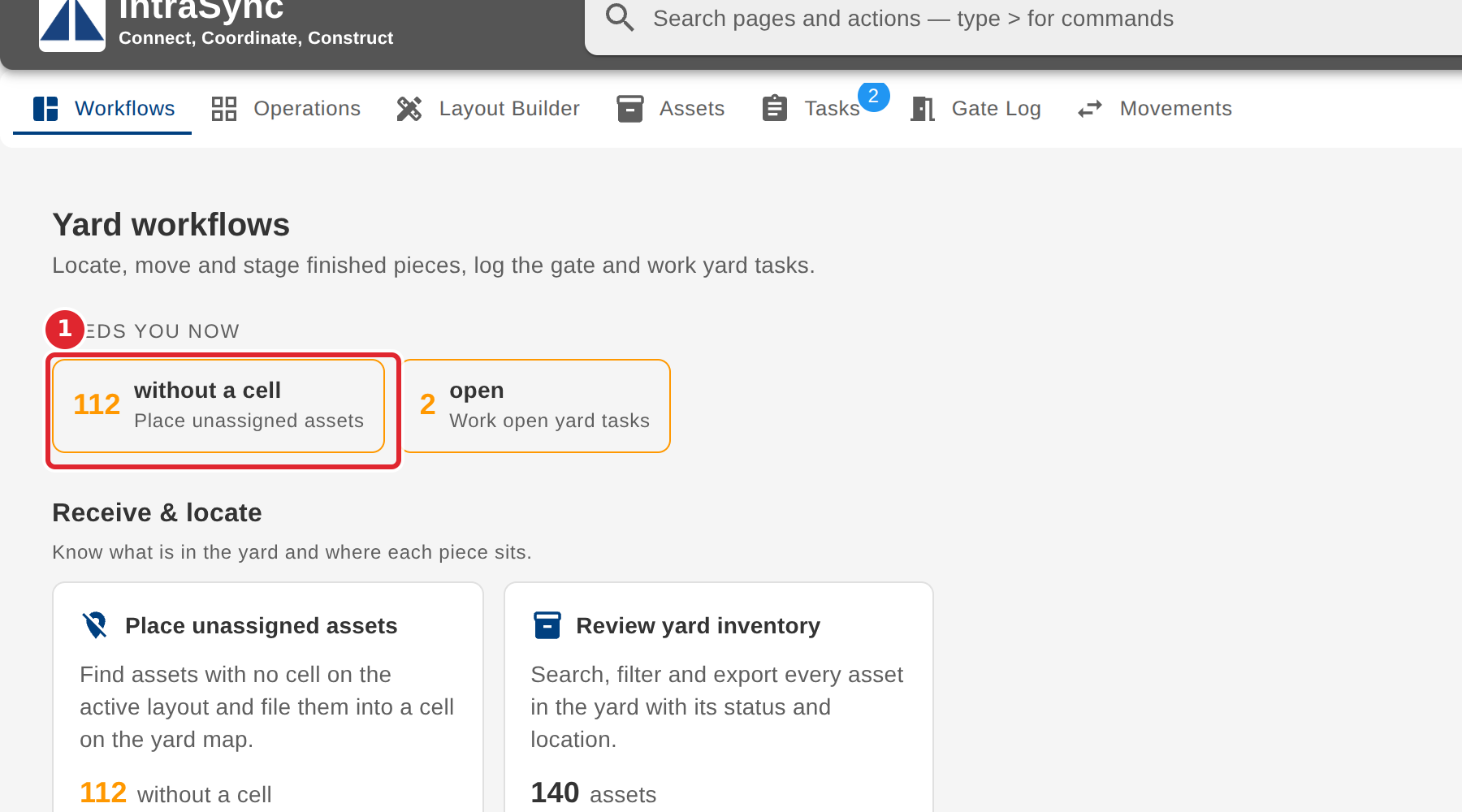
In the pictures, a numbered red box marks where to click or type. Where a picture has more than one box, the numbers give the order.
Open Yard Management. It opens on the Workflows tab, which groups the yard's work into stages and shows what needs you now at the top.
Use the tab strip to move between Workflows, Operations, Layout Builder, Assets, Tasks, Gate Log and Movements.
Use the tools at the right of the header: Search the yard, then Refresh yard data, Unassigned assets, Cell capacity and Yard administration.
Select a card, or a count under Needs you now, to go straight to that work. The count of assets without a cell, for example, opens the Operations tab to place them.
Tips
- A number on the Tasks tab counts the open tasks, and a number on Unassigned assets counts the assets with no cell on the active layout.
- A count on the Workflows tab that reads unavailable could not be loaded. It does not mean there is nothing to do.
- Refresh yard data reads every list again from the server.