Yard Management guide · section 2 of 44
Create a yard layout
A layout is a to-scale drawing of the yard, divided into cells. Pieces are placed in cells, so a layout comes first.
Watch this in the video (0:12)
Steps
In the pictures, a numbered red box marks where to click or type. Where a picture has more than one box, the numbers give the order.
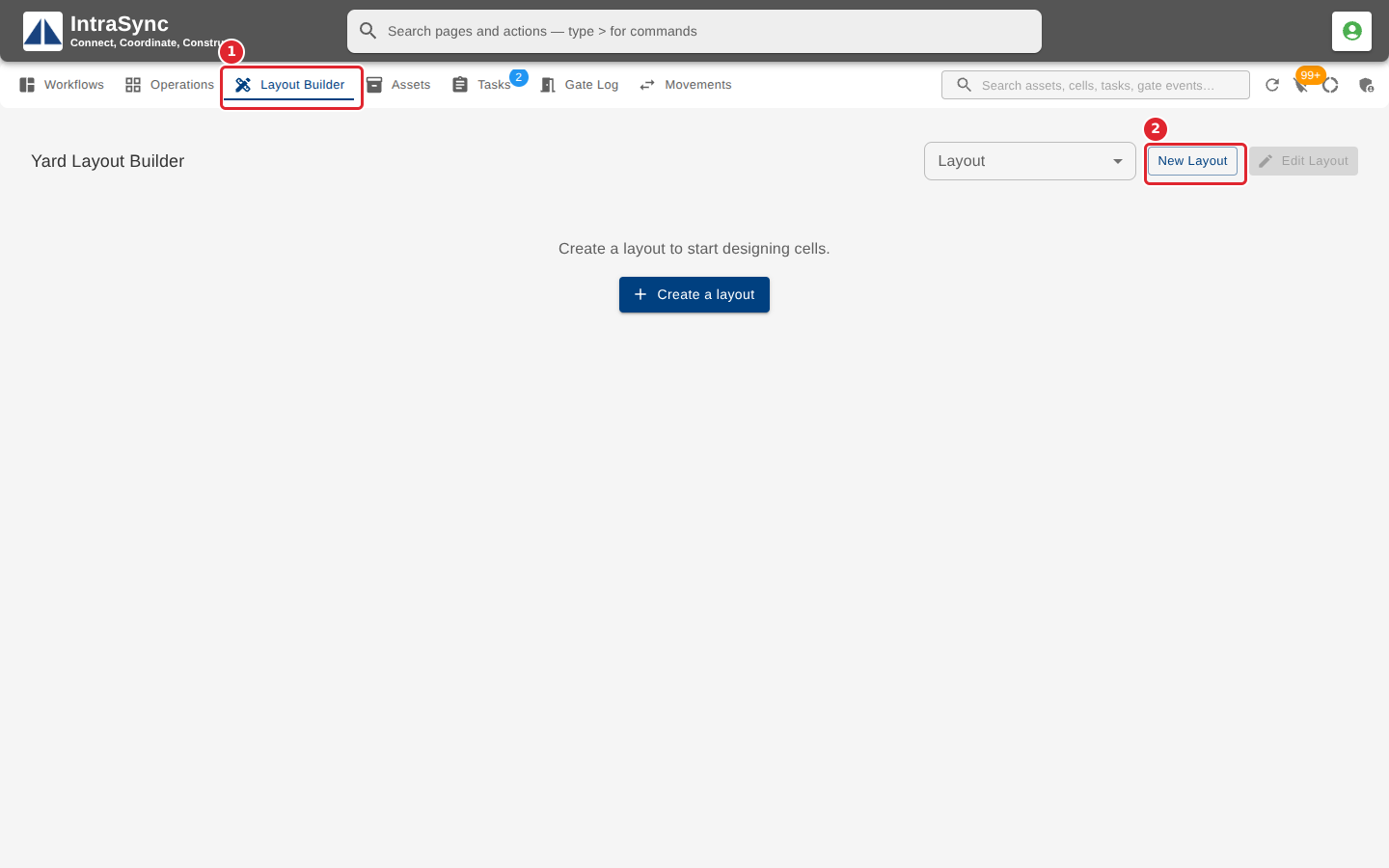
Open the Layout Builder tab and select New Layout.
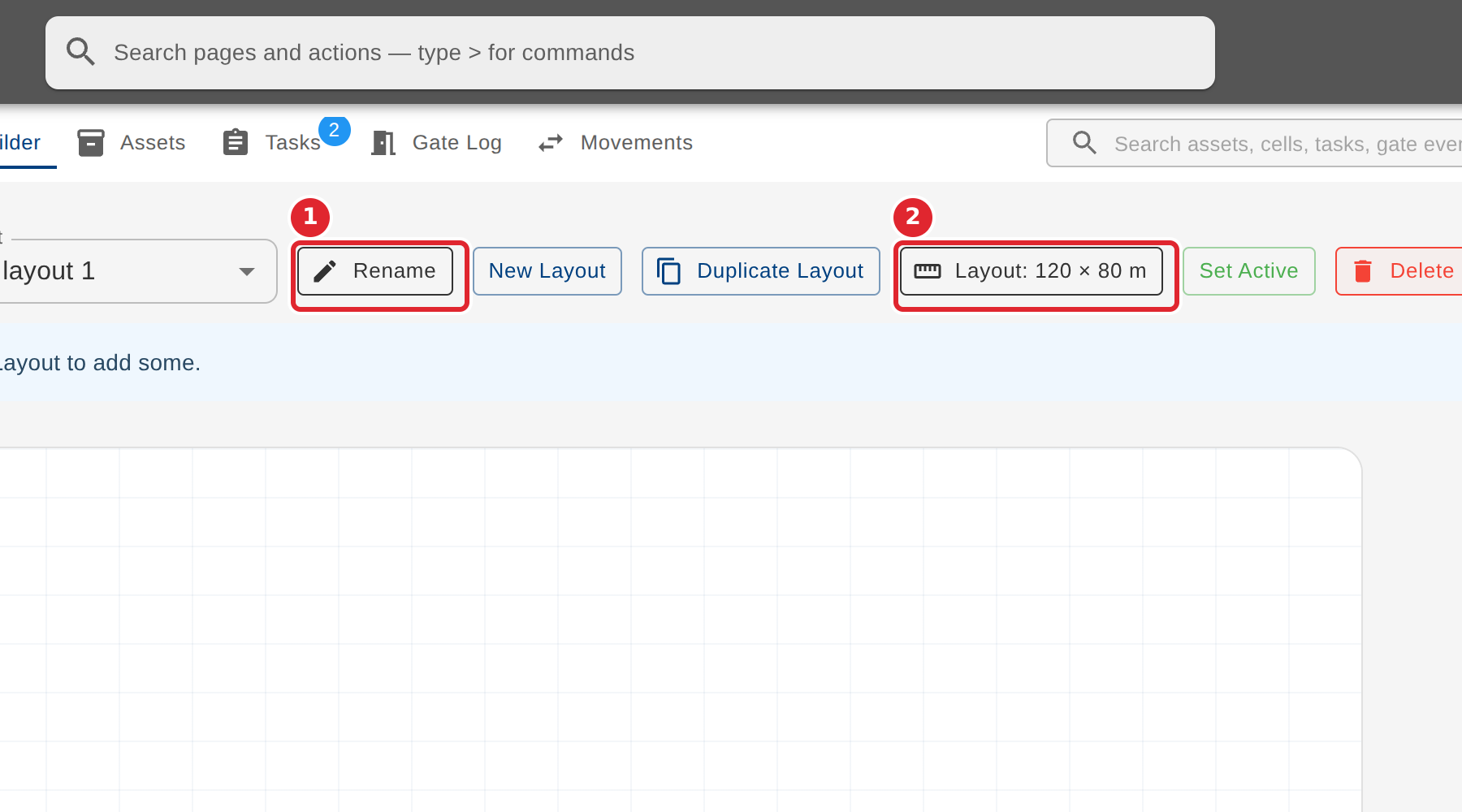
The new layout is selected in the Layout list. Select Rename to give it a name, or the Layout size button to set its real size.
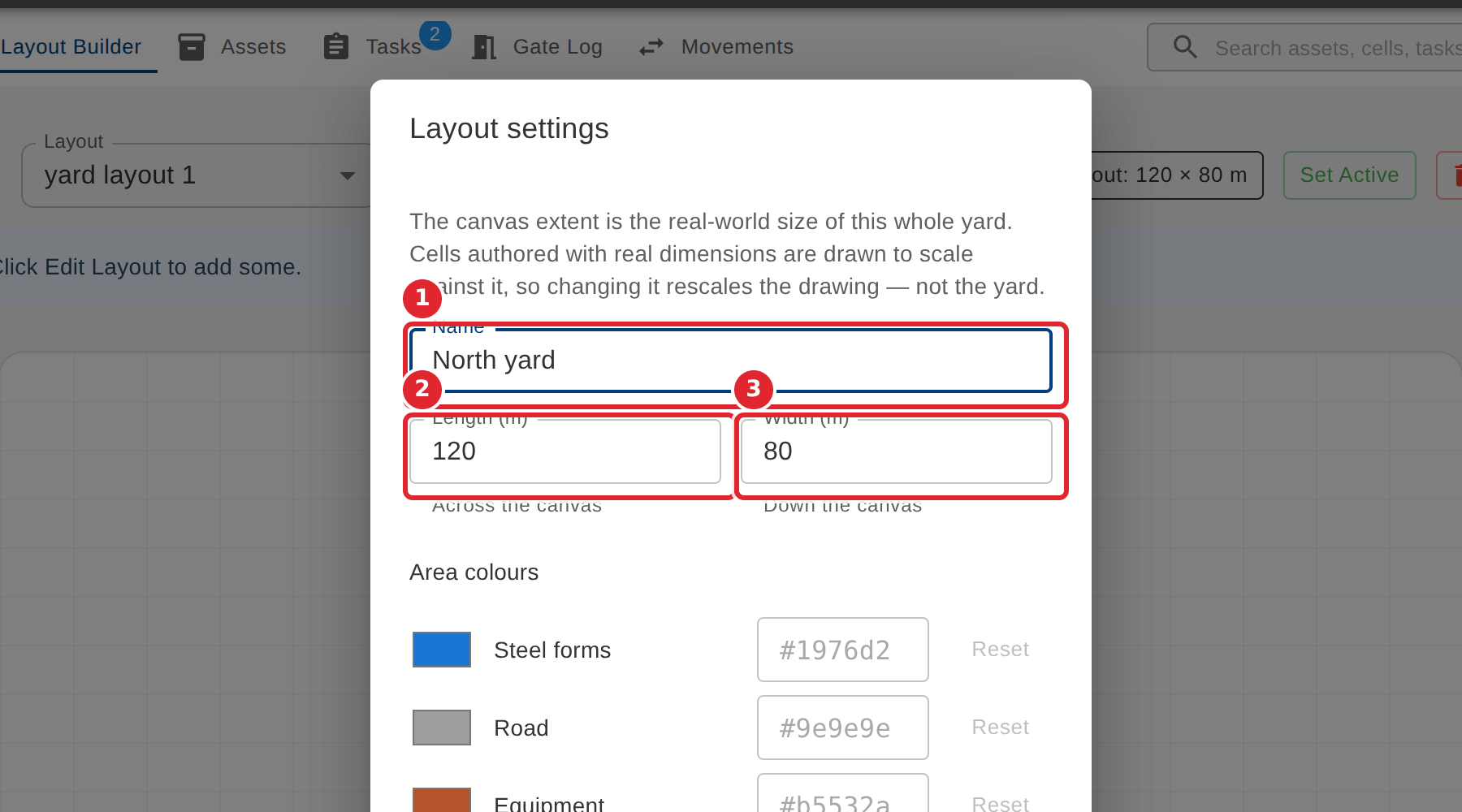
Enter the Name. Then enter the yard's real Length (across the canvas) and Width (down the canvas), so every cell is drawn to scale.
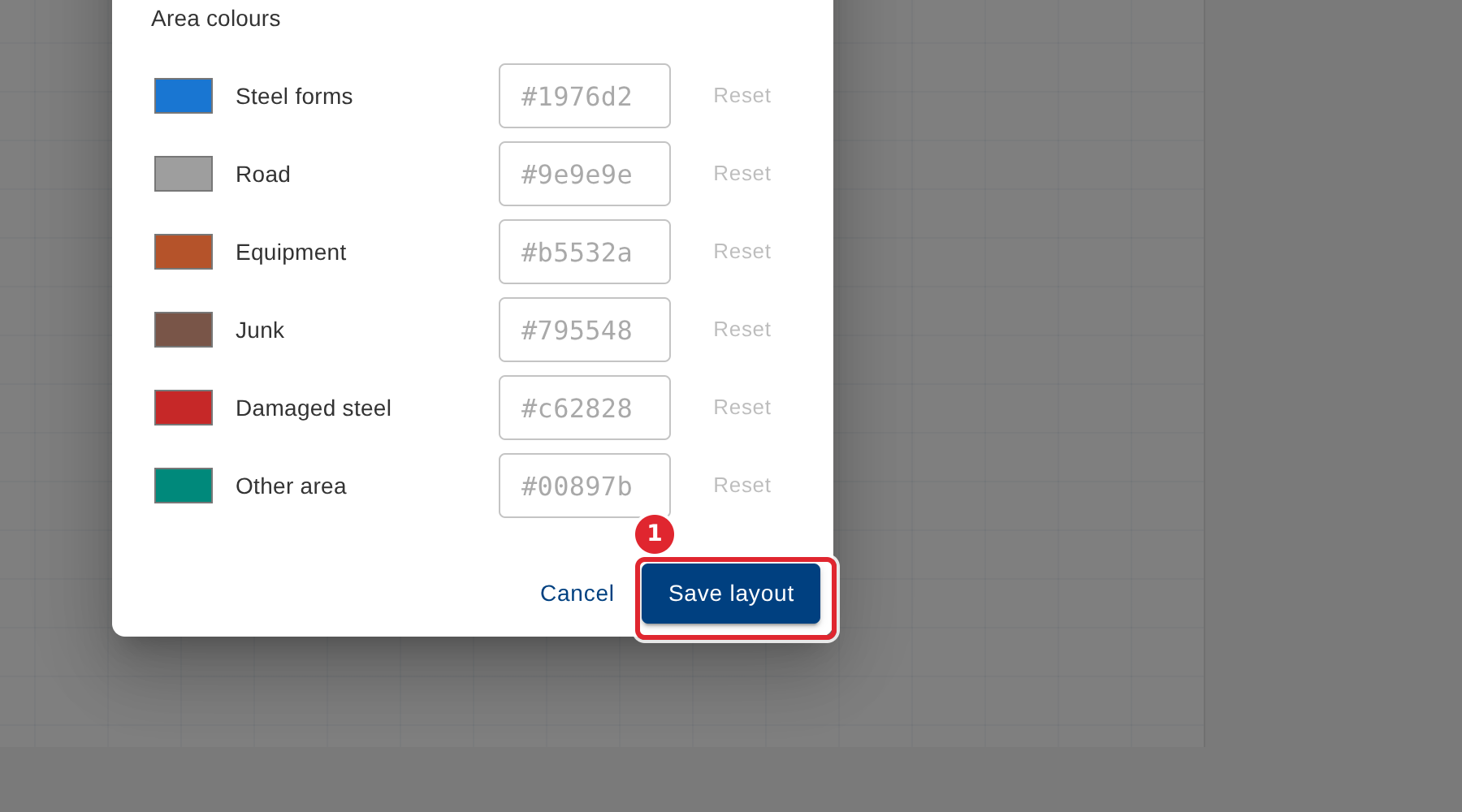
Select Save layout.
Tips
- A layout needs a name: Save layout stays unavailable while the Name is blank.
- The Length and Width are the real size of the whole yard. Changing them rescales the drawing, not the yard: every cell keeps its real size.
- Area colours set the colour of each kind of area on this layout. Reset puts one back to the standard colour.