Engineering guide · section 13 of 25
Share a submittal's documents with a firm
Give an outside firm the drawings sent to it, and a place to upload its own, without an account.
Watch this in the video (2:16)
Before you start
- Access to the Engineering hub (its page permission).
- Sharing is switched on for your system.
- The submittal is with the firm.
Steps
In the pictures, a numbered red box marks where to click or type. Where a picture has more than one box, the numbers give the order.
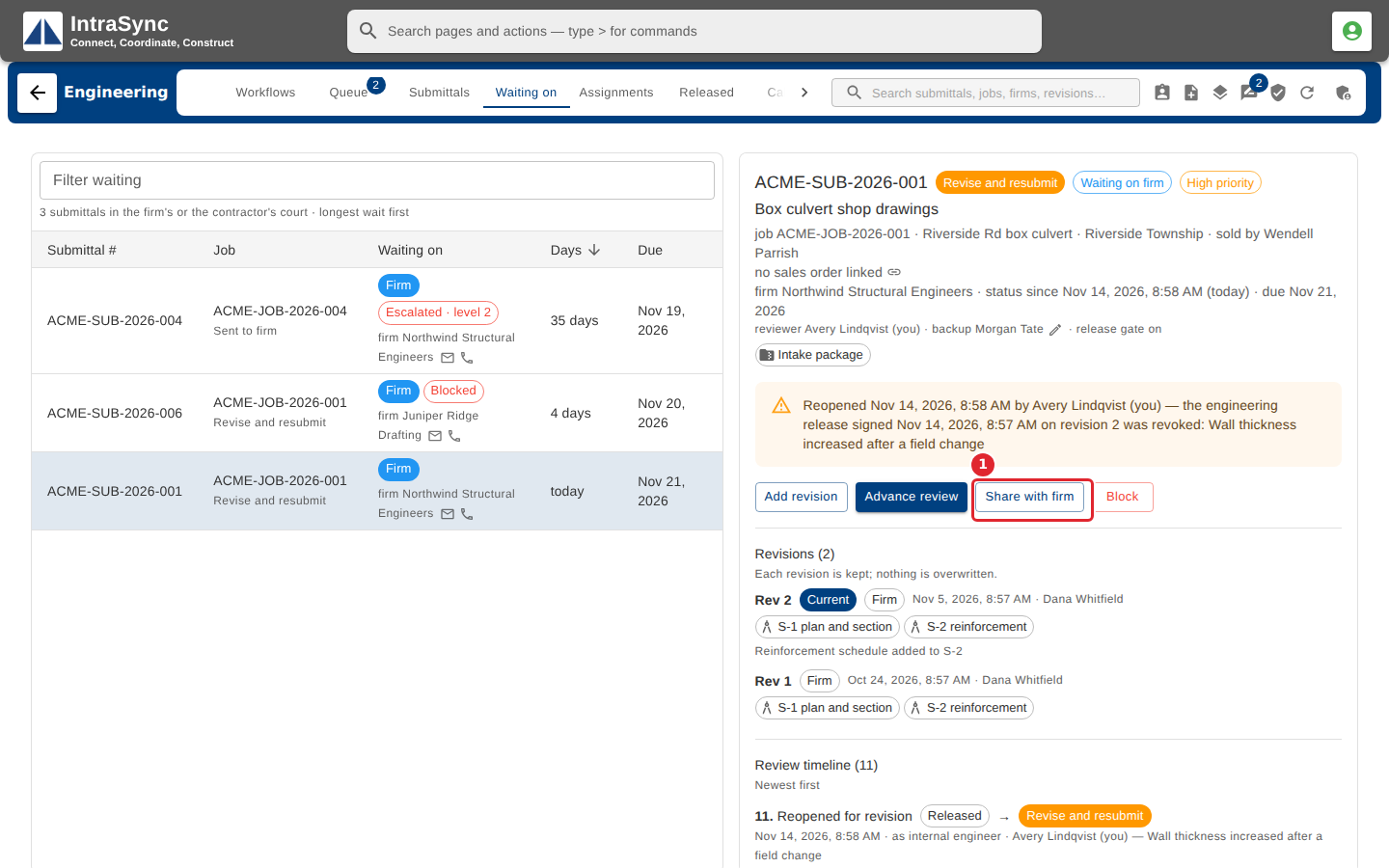
Open the submittal and select Share with firm.
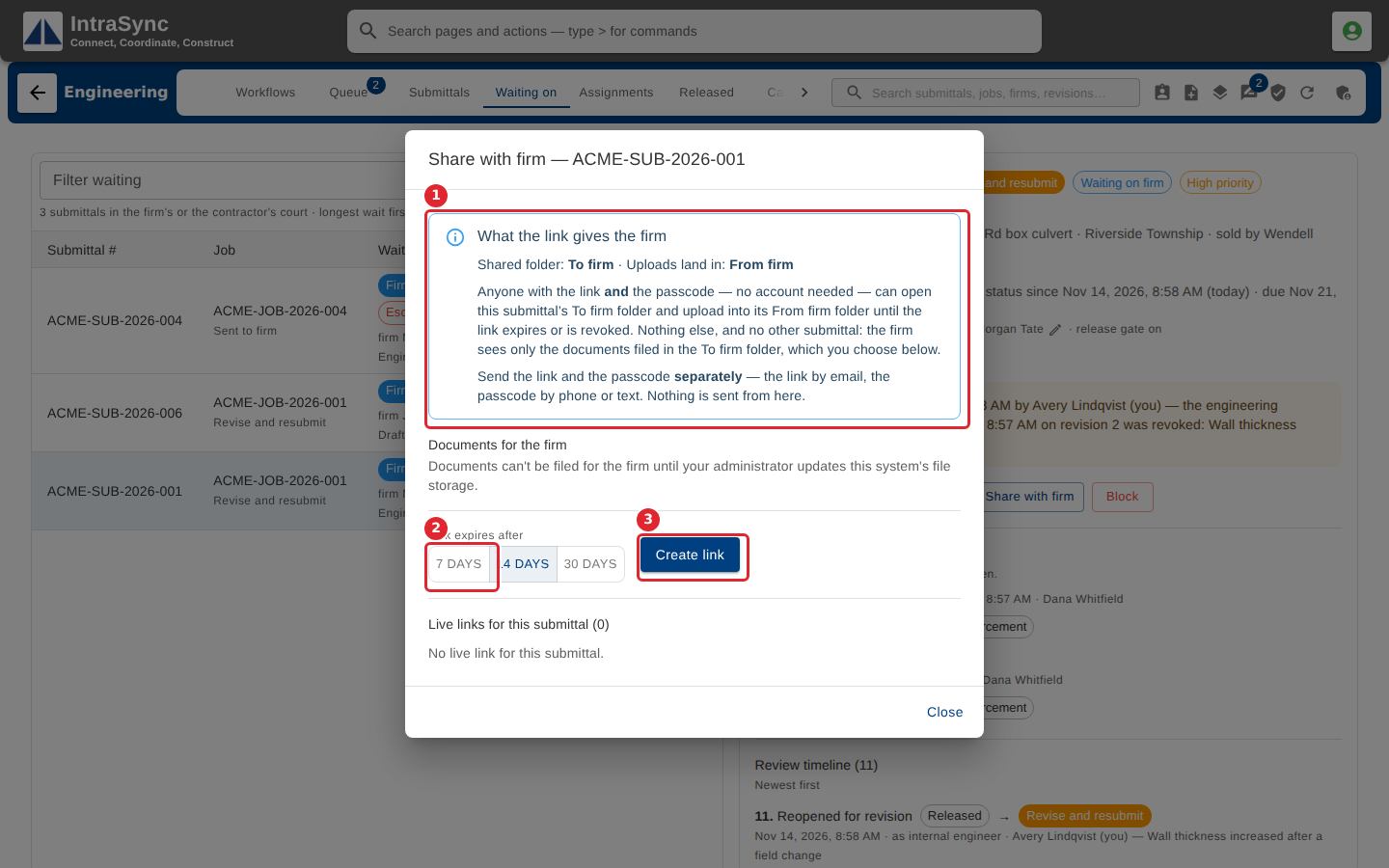
Read which folder the firm sees and where its uploads land. Choose how long the link lasts, then select Create link.
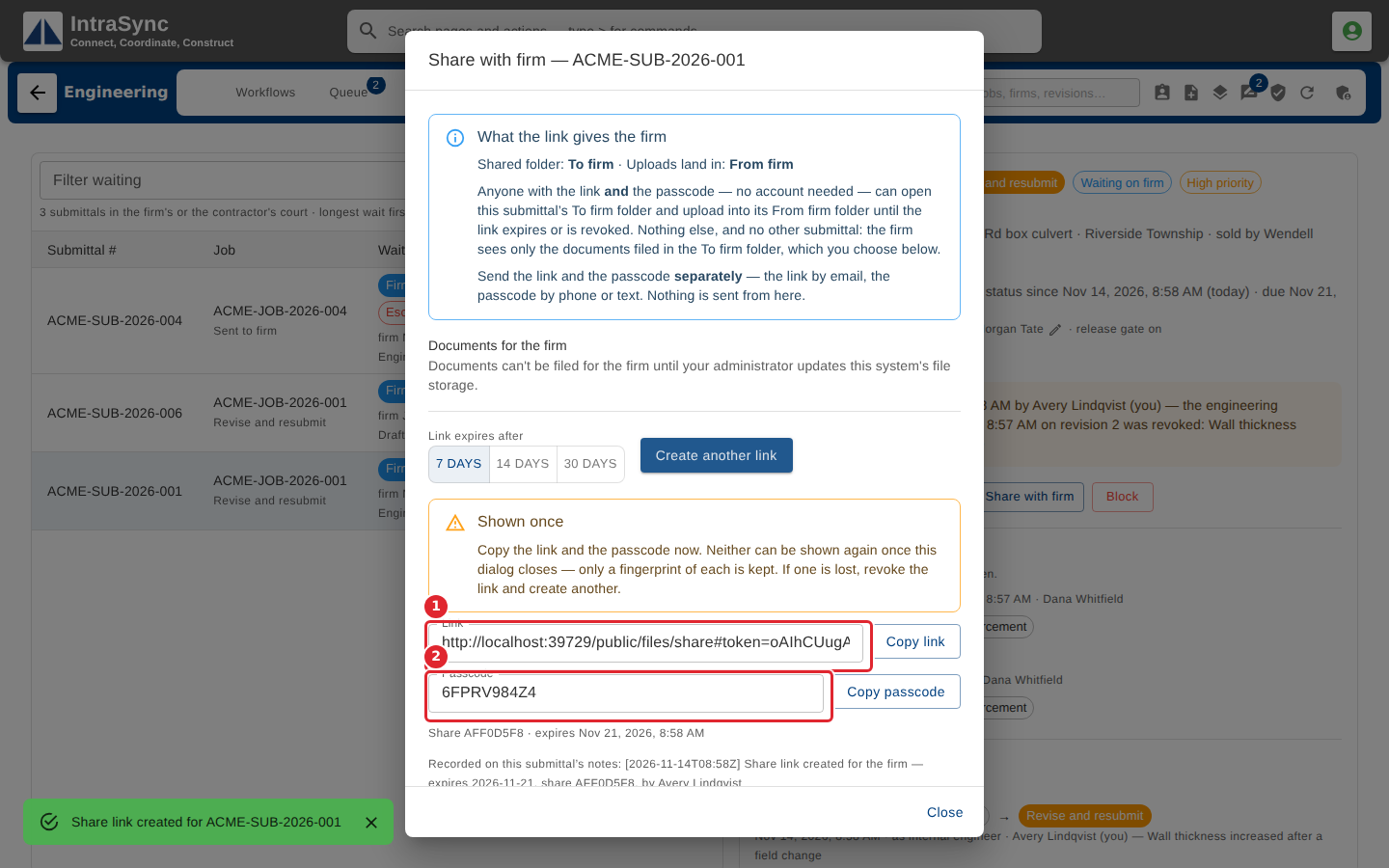
Copy the link and the passcode now: neither can be shown again once the dialog closes. Send them to the firm separately, for example the link by email and the passcode by phone.
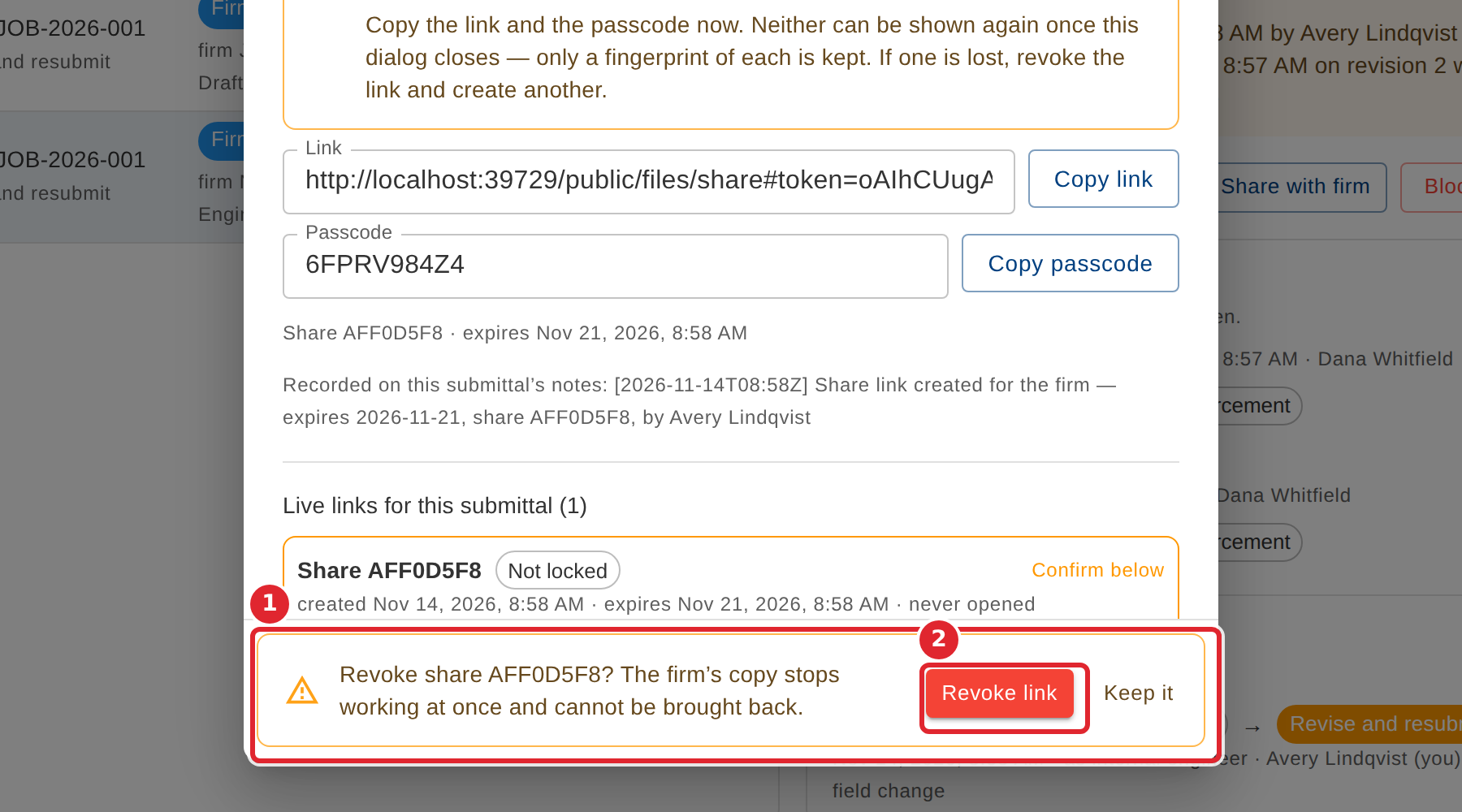
To stop a link working, select Revoke on it, then Revoke link to confirm.
Tips
- If you lose the link or passcode, revoke the link and create another one.
- Revoking cannot be undone: the firm's copy stops working at once.
- Each link you create is recorded in the submittal's notes.