Yard Management guide · section 23 of 44
Add or change an asset
Add something the yard holds that is not already listed, or correct an asset's details.
Steps
In the pictures, a numbered red box marks where to click or type. Where a picture has more than one box, the numbers give the order.
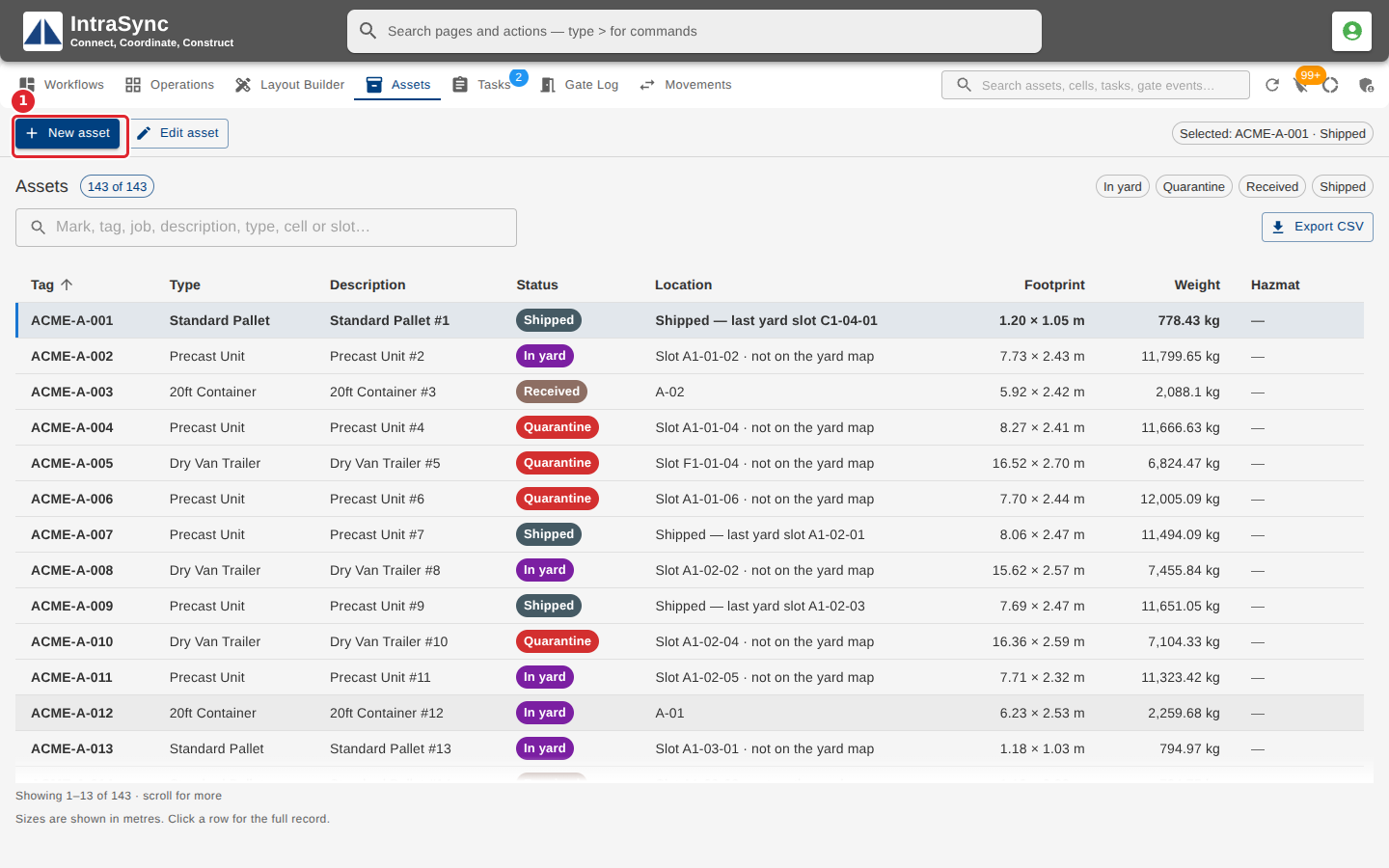
On the Assets tab, select New asset.
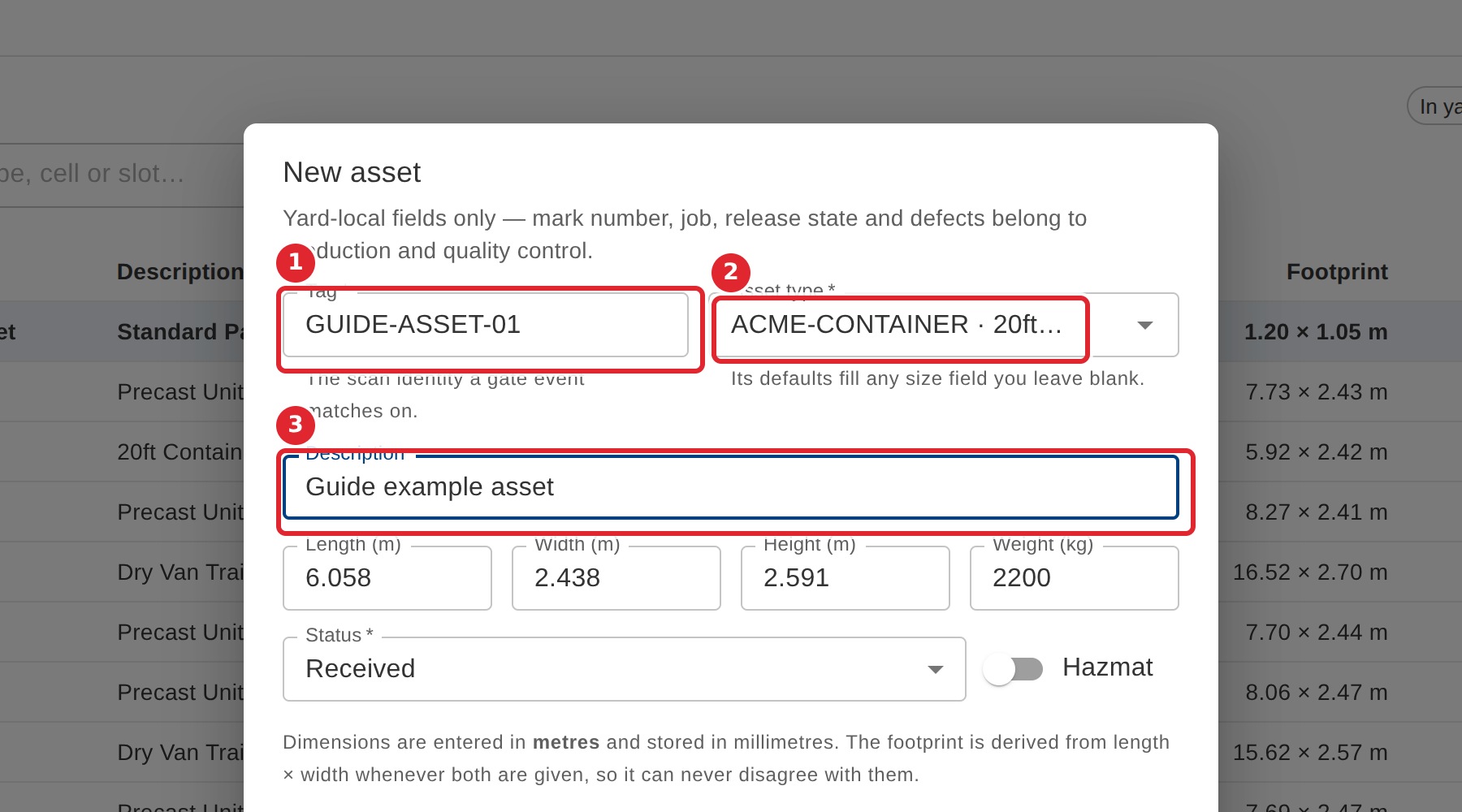
Enter the Tag, which is the scan identity the gate matches on, choose the Asset type, and add a Description.
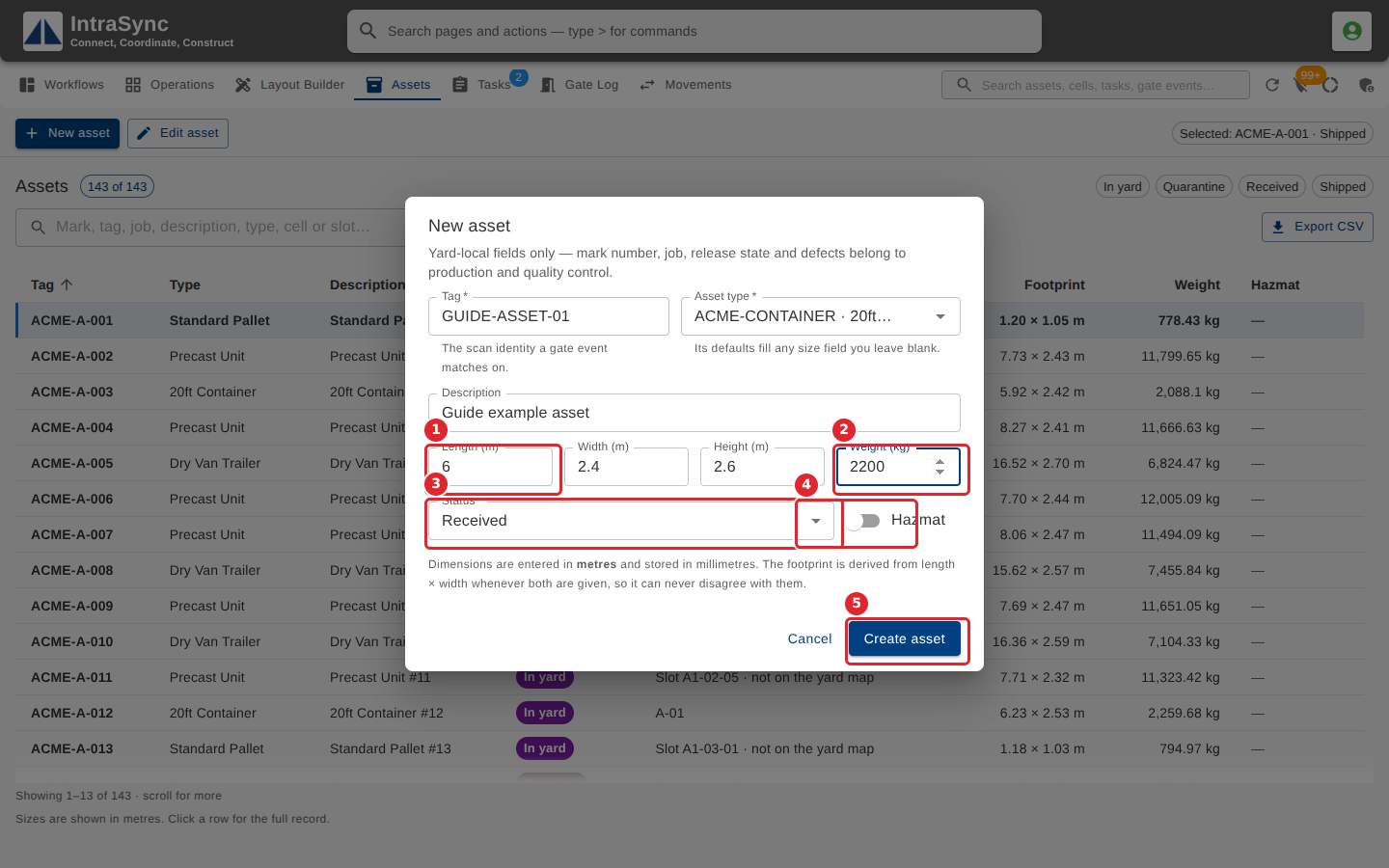
Enter its Length, Width and Height in metres and its Weight in kilograms, choose its Status, and switch on Hazmat if it is hazardous. Then select Create asset.
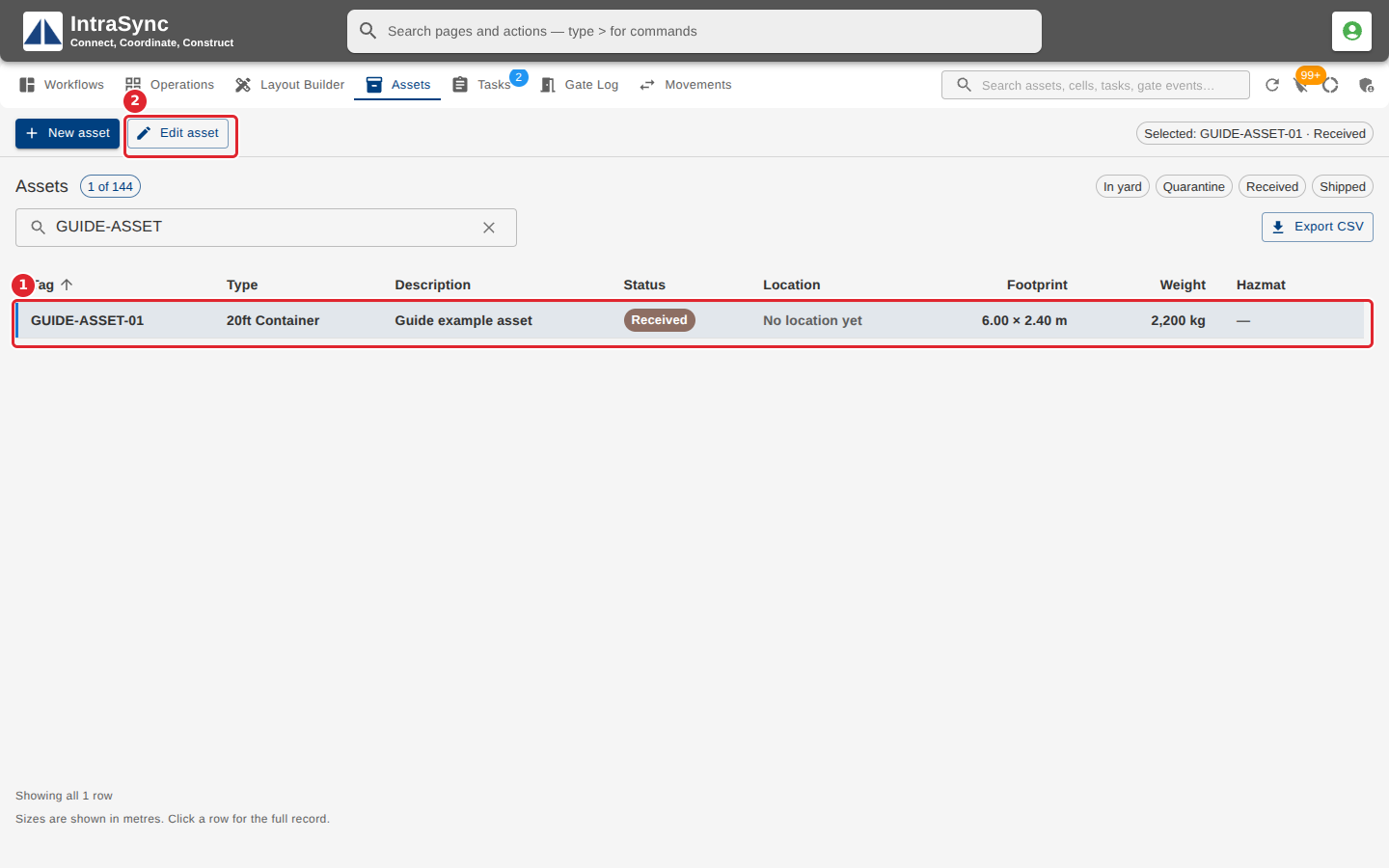
To change an asset later, select its row, then Edit asset.
Tips
- The Tag is required, up to 64 characters. It is the scan identity the gate matches on.
- Choose the Asset type first: its standard sizes fill any size you leave blank.
- Sizes are in metres and weight in kilograms, each greater than zero.
- Mark, job, release state and defects come from production and quality control, so they are not edited here.
- No asset types to choose from? An administrator adds them under Yard administration > Asset types.