Yard Management guide · section 39 of 44
Manage asset types
Keep the catalog of asset kinds the yard stores, with their standard sizes and how they stack.
Watch this in the video (2:18)
Before you start
- You are a yard administrator. Only administrators see the Yard administration button.
Steps
In the pictures, a numbered red box marks where to click or type. Where a picture has more than one box, the numbers give the order.
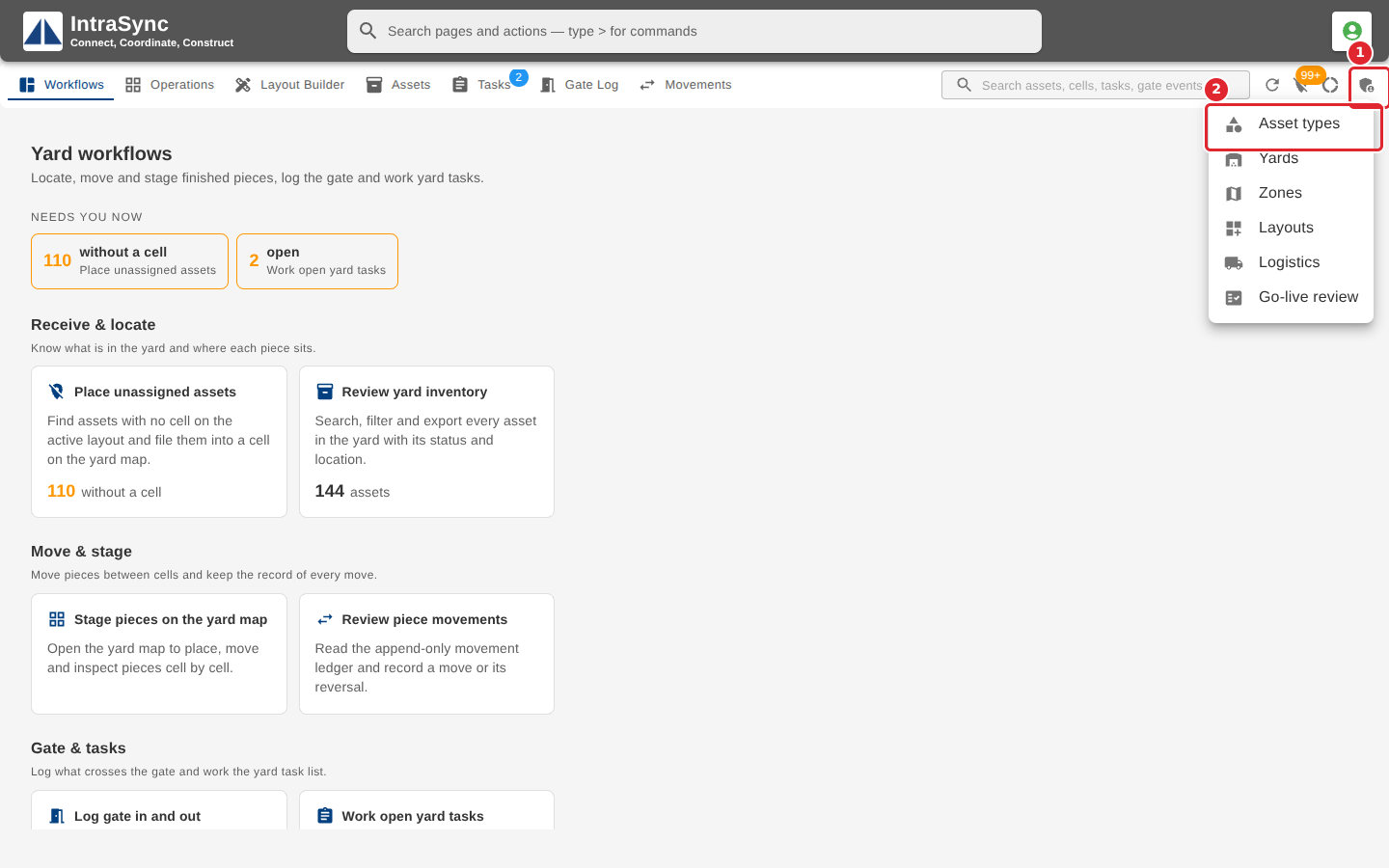
Select Yard administration in the header, then Asset types. Only administrators see this button.
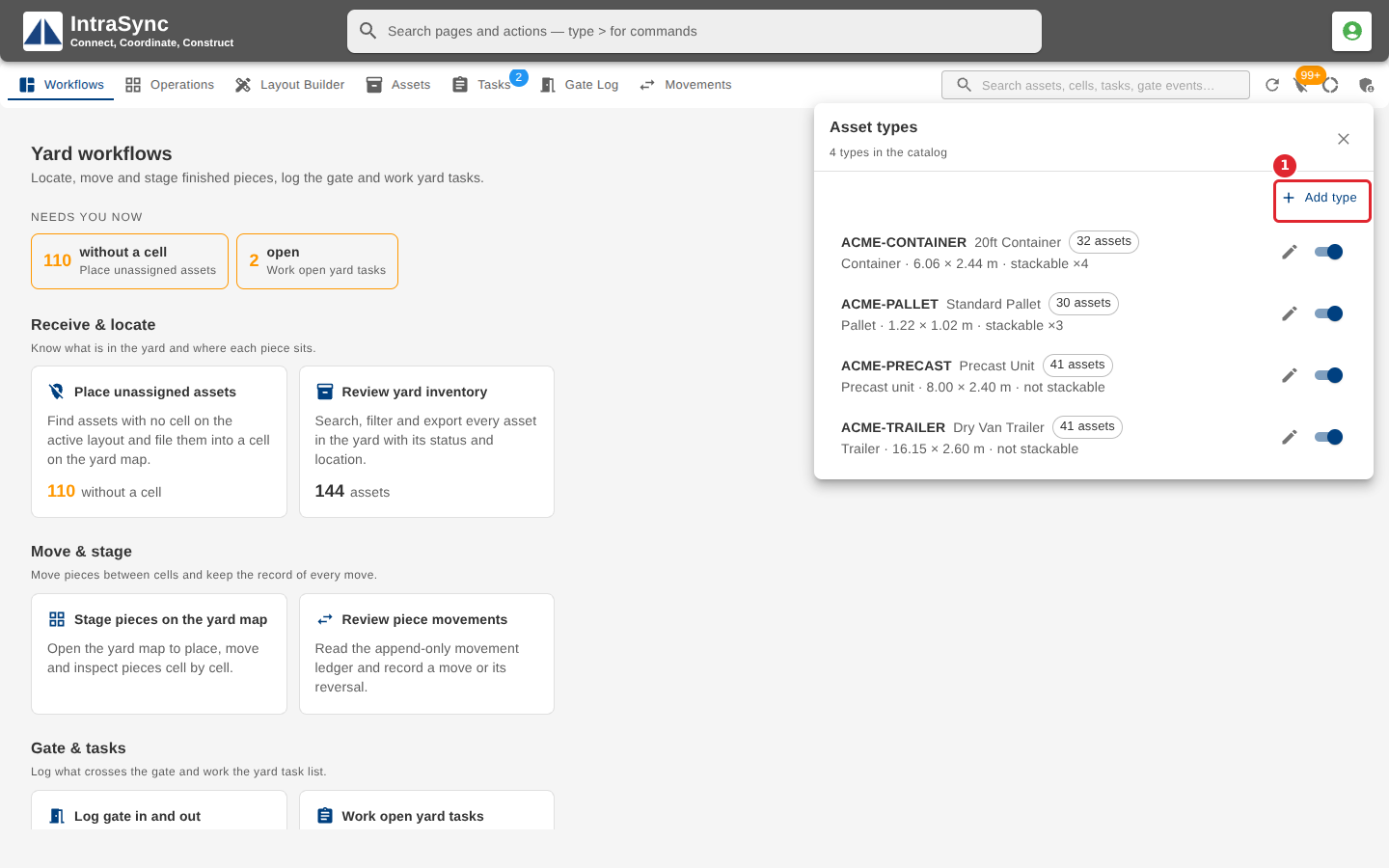
The catalog lists every kind of asset the yard stores, with its size and how it stacks. Use the pencil to edit a type, and the switch to retire or restore it. Select Add type for a new one.
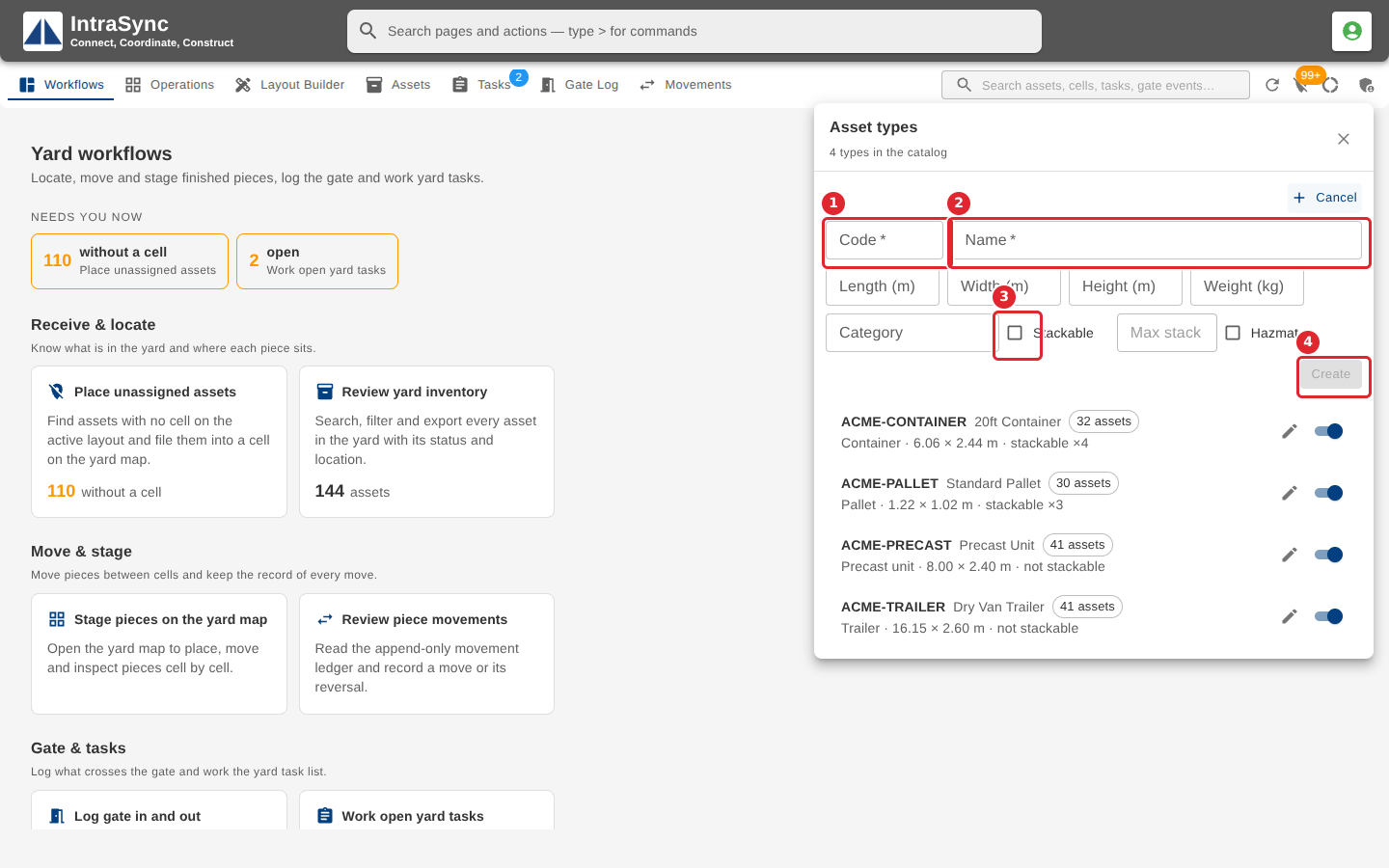
Enter a Code and a Name, both required, then the size in metres, the weight in kilograms and the category. Switch on Stackable to set Max stack, then select Create.
Tips
- Code and Name are required. Sizes are in metres and weight in kilograms, each greater than zero.
- Max stack is a whole number, 1 or more, and can only be set when Stackable is on.
- The switch beside each type marks it active or not.