Yard Management guide · section 5 of 44
Change or remove a cell
Correct a cell's name, capacity, size or area type, or take it off the layout.
Steps
In the pictures, a numbered red box marks where to click or type. Where a picture has more than one box, the numbers give the order.
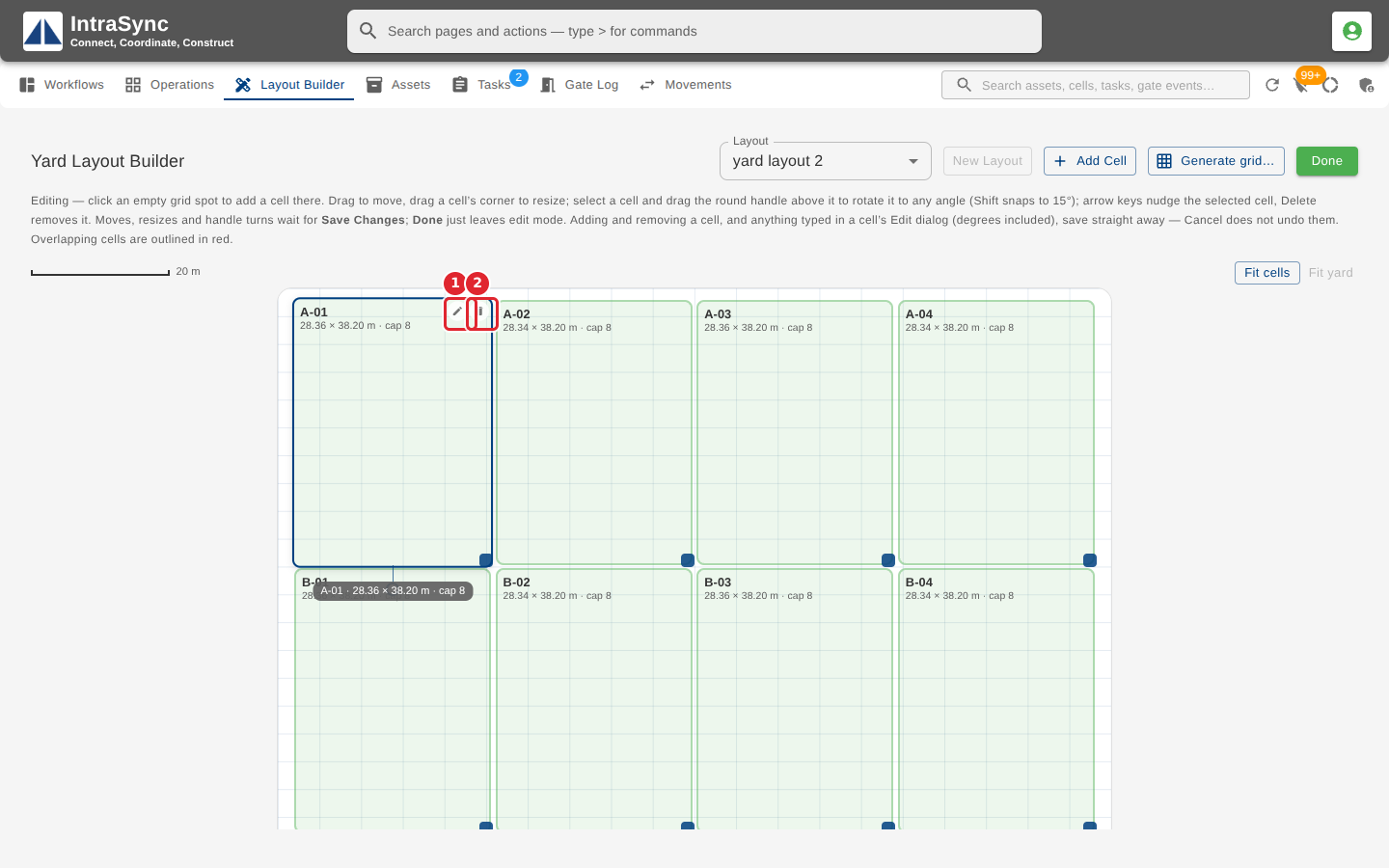
To change a cell, select Edit Layout, select the cell, then its pencil (Edit cell). Its bin icon (Remove cell) takes it off the layout after you confirm.
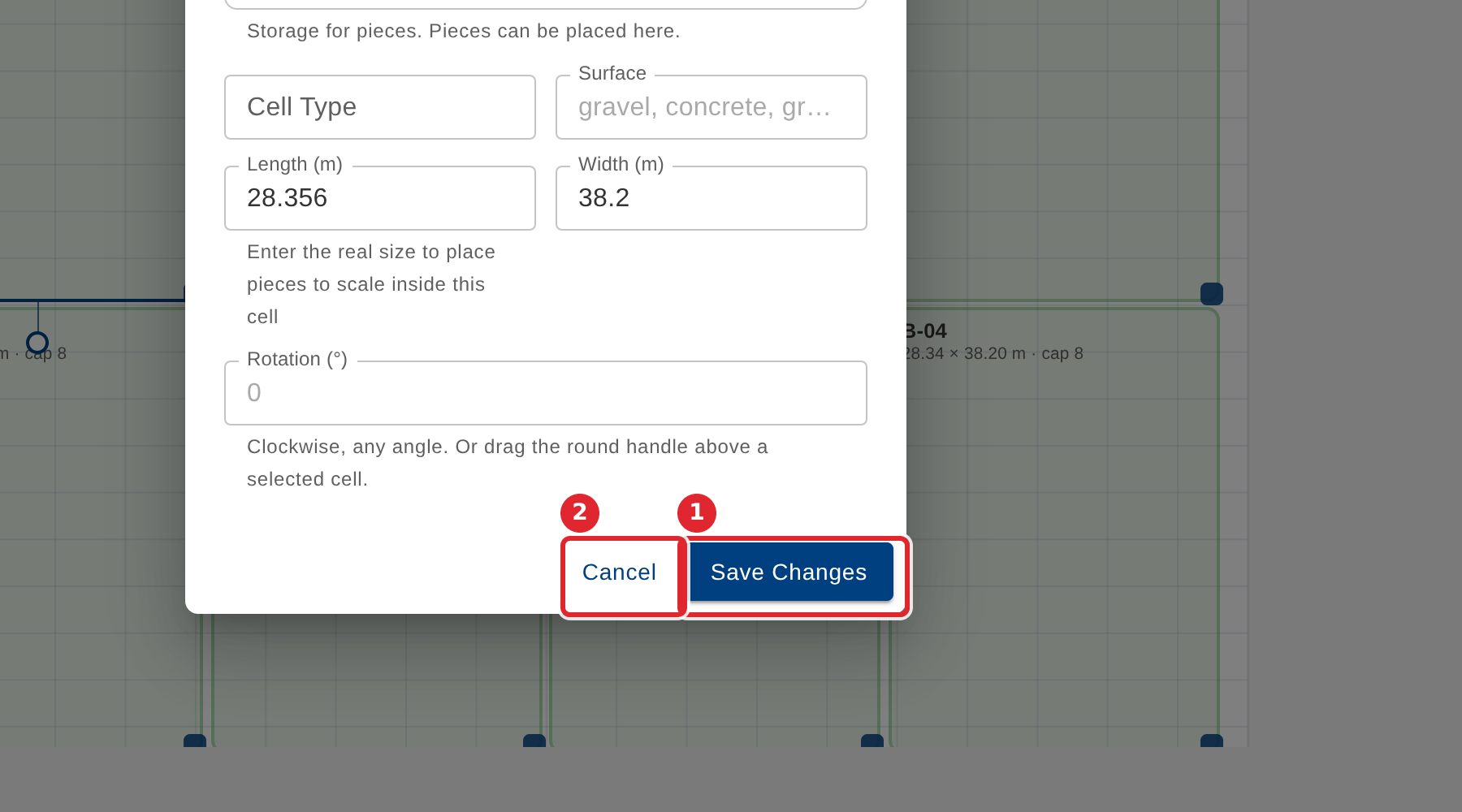
Change any field, then select Save Changes. Select Cancel to leave the cell as it was.
Tips
- While editing, you can also drag a cell to move it, drag its corner to resize it, or drag the round handle above a selected cell to turn it. Hold Shift to snap to 15 degrees. Then select Save Changes.
- The arrow keys nudge the selected cell, and Delete removes it.
- Removing a cell asks you to confirm first.