Yard Management guide · section 4 of 44
Generate a grid of cells
Lay out evenly spaced rows and bays in one step, instead of adding each cell by hand.
Steps
In the pictures, a numbered red box marks where to click or type. Where a picture has more than one box, the numbers give the order.
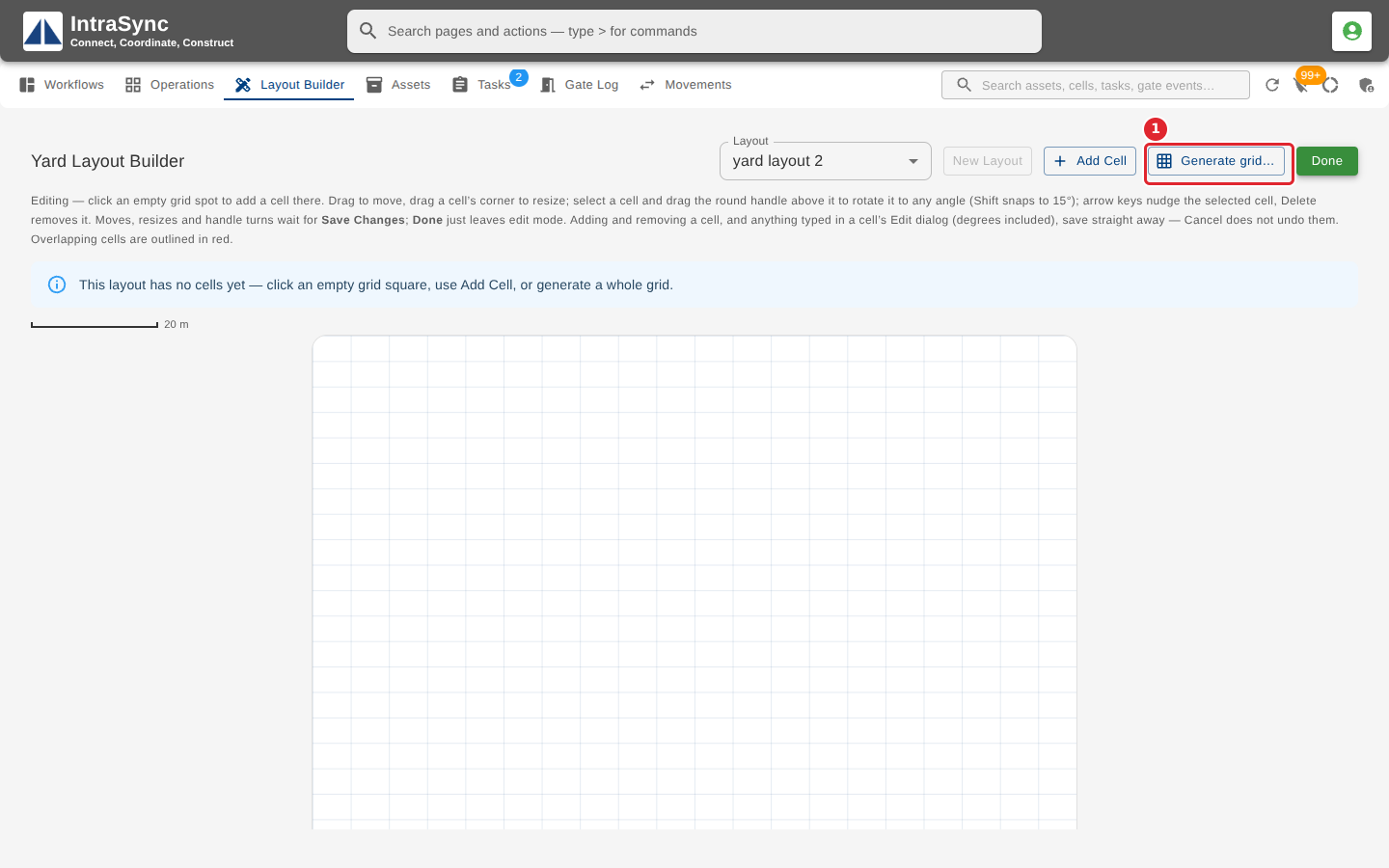
To lay out many cells at once, select Edit Layout, then Generate grid…. The grid is spread over the whole layout, so use it on a new or empty layout.
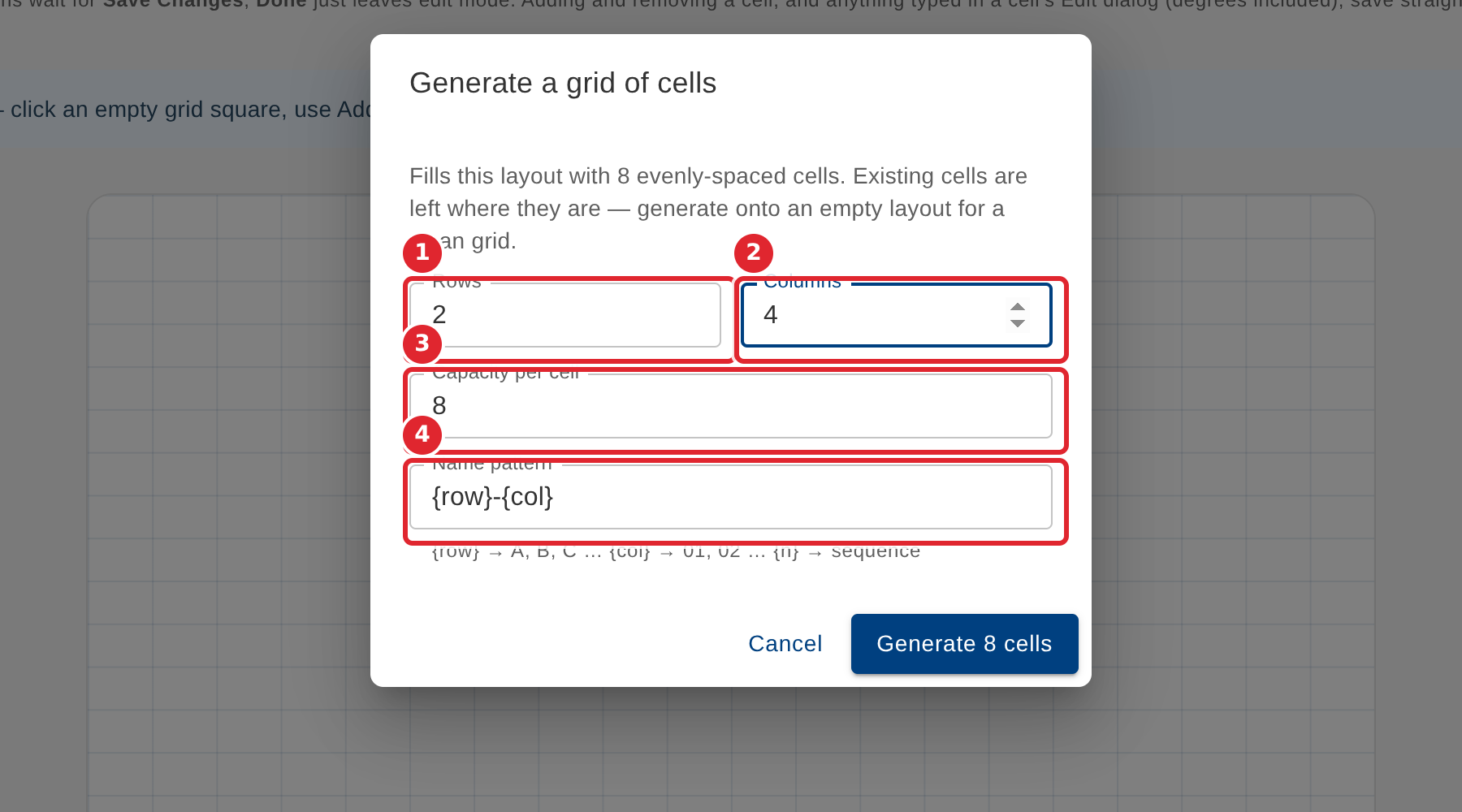
Enter the number of Rows and Columns, the Capacity per cell, and the Name pattern. {row} becomes A, B, C, {col} becomes 01, 02, and {n} counts up.
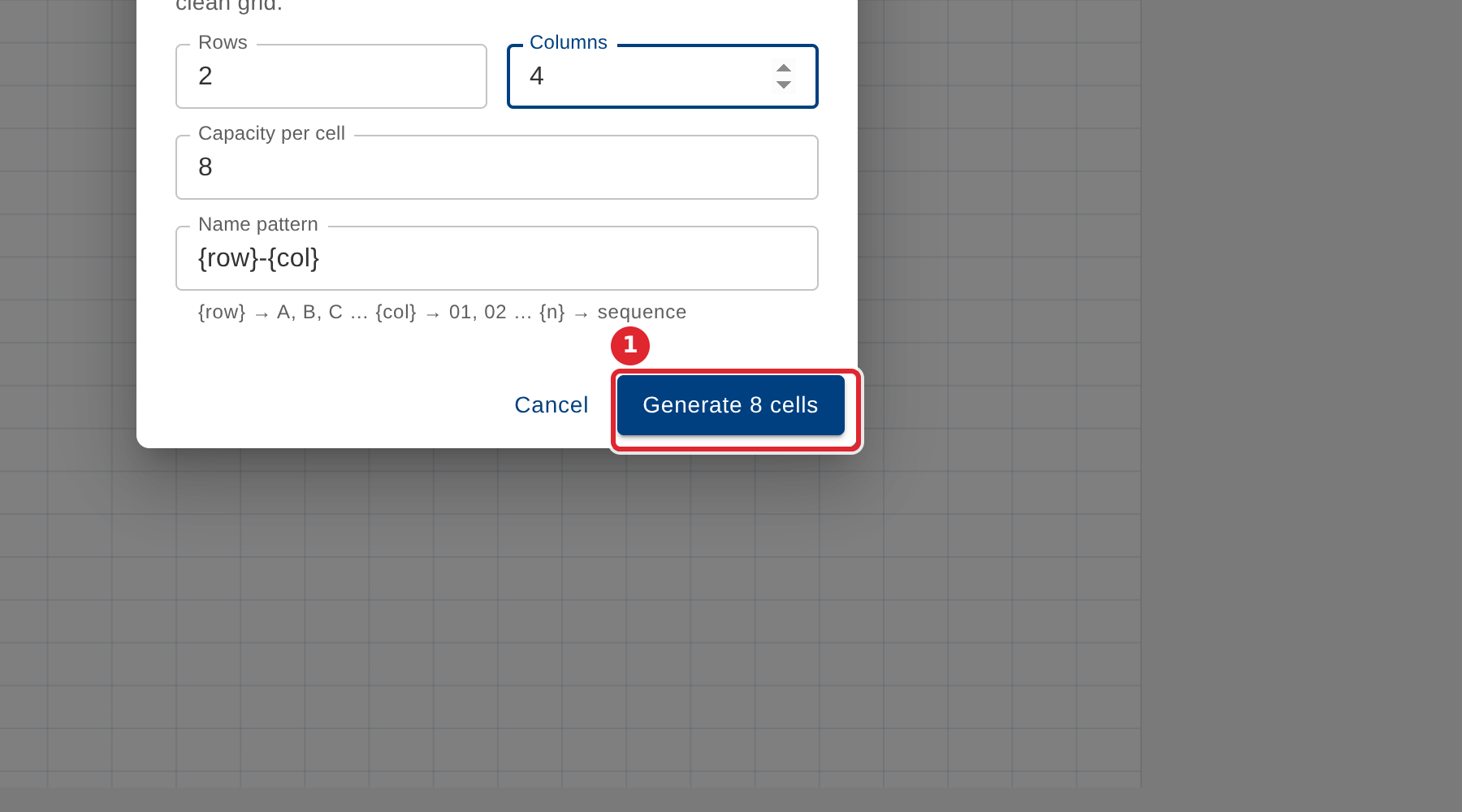
Select Generate. The button says how many cells it will make.
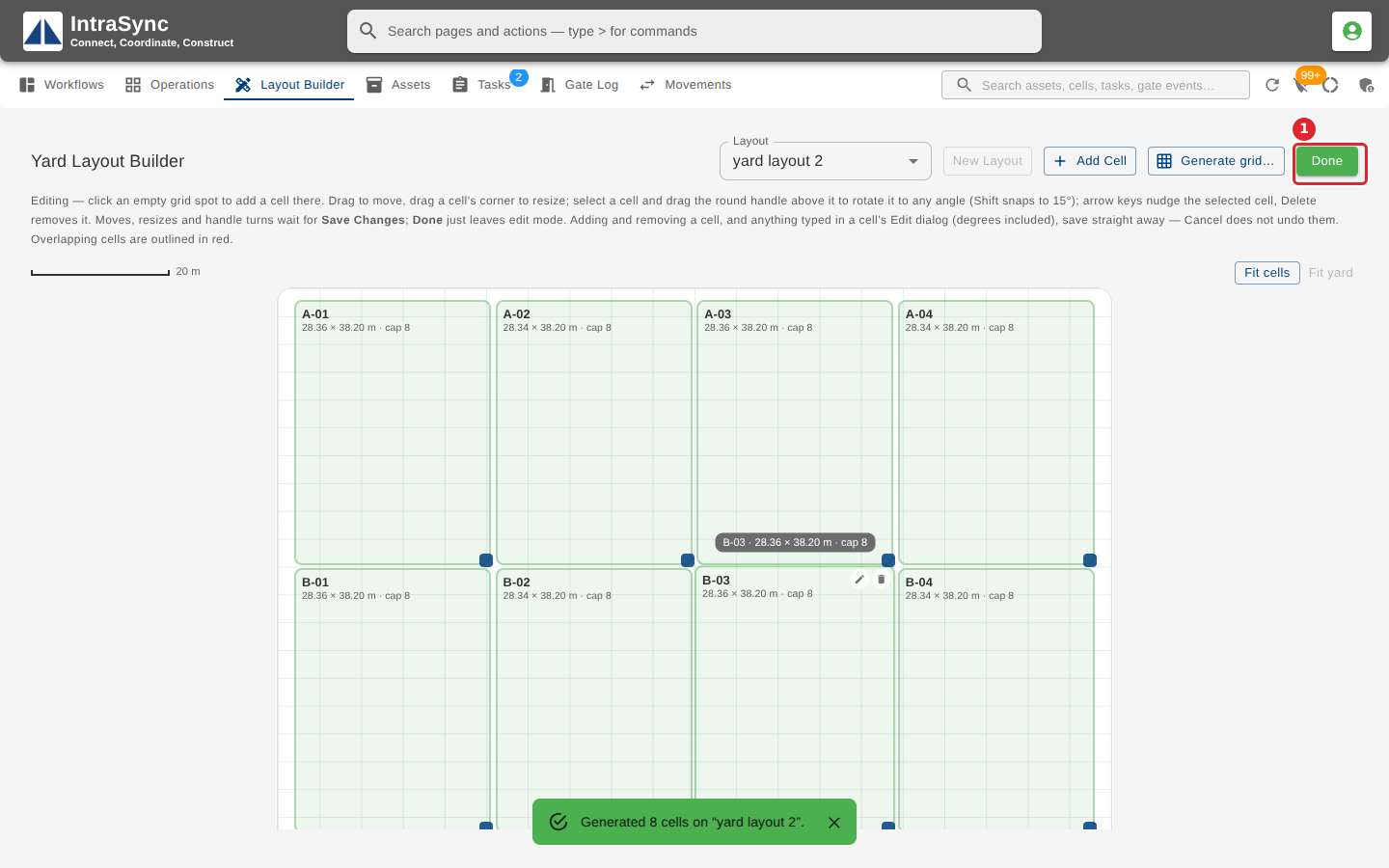
The new cells are added to the layout. Select Save Changes, or Done, to leave the editing session.
Tips
- Rows can be from 1 to 26 and Columns from 1 to 40.
- Cells already on the layout are left where they are and the grid is drawn over them, so start from an empty layout for a clean grid.
- Each generated cell can be changed afterwards like any other.