Draw a section's close-up as lanes
Set how a section's View draws it, the way the yard is laid out on the ground: lanes from one road to the other, each as wide as the pieces in it, with one product to a lane or two products sharing a lane with eco blocks between them.
Before you start
- Your company has turned on section close-up layouts. Without it, the Sections window has no Close-up layout picker.
- The section lists the products that go in it. See List what goes in each section of a row.
Steps
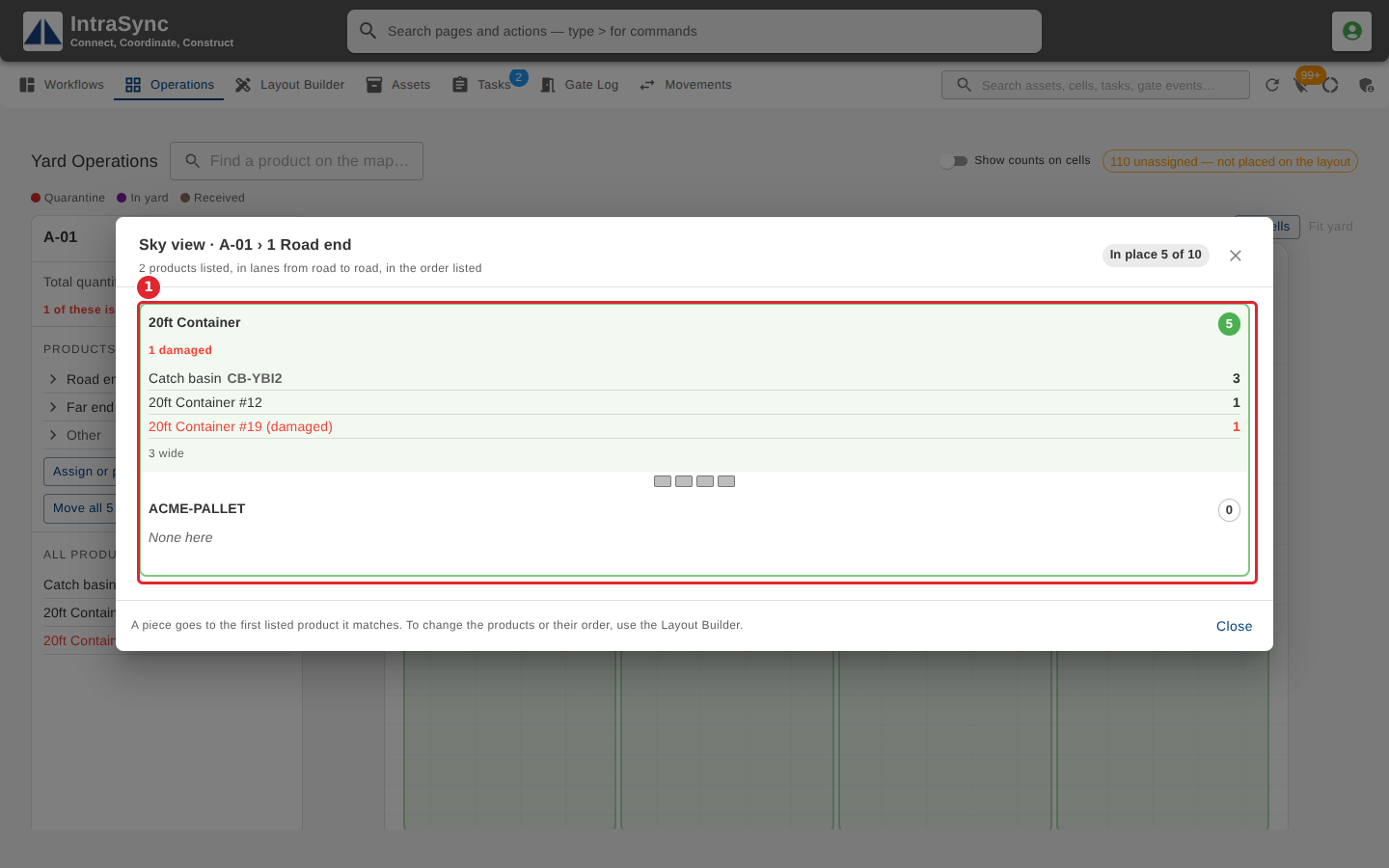
In the pictures, a numbered red box marks where to click or type. Where a picture has more than one box, the numbers give the order.
On the Layout Builder tab, select the row, then Edit sections. Each section has a Close-up layout (the View) picker under its products.
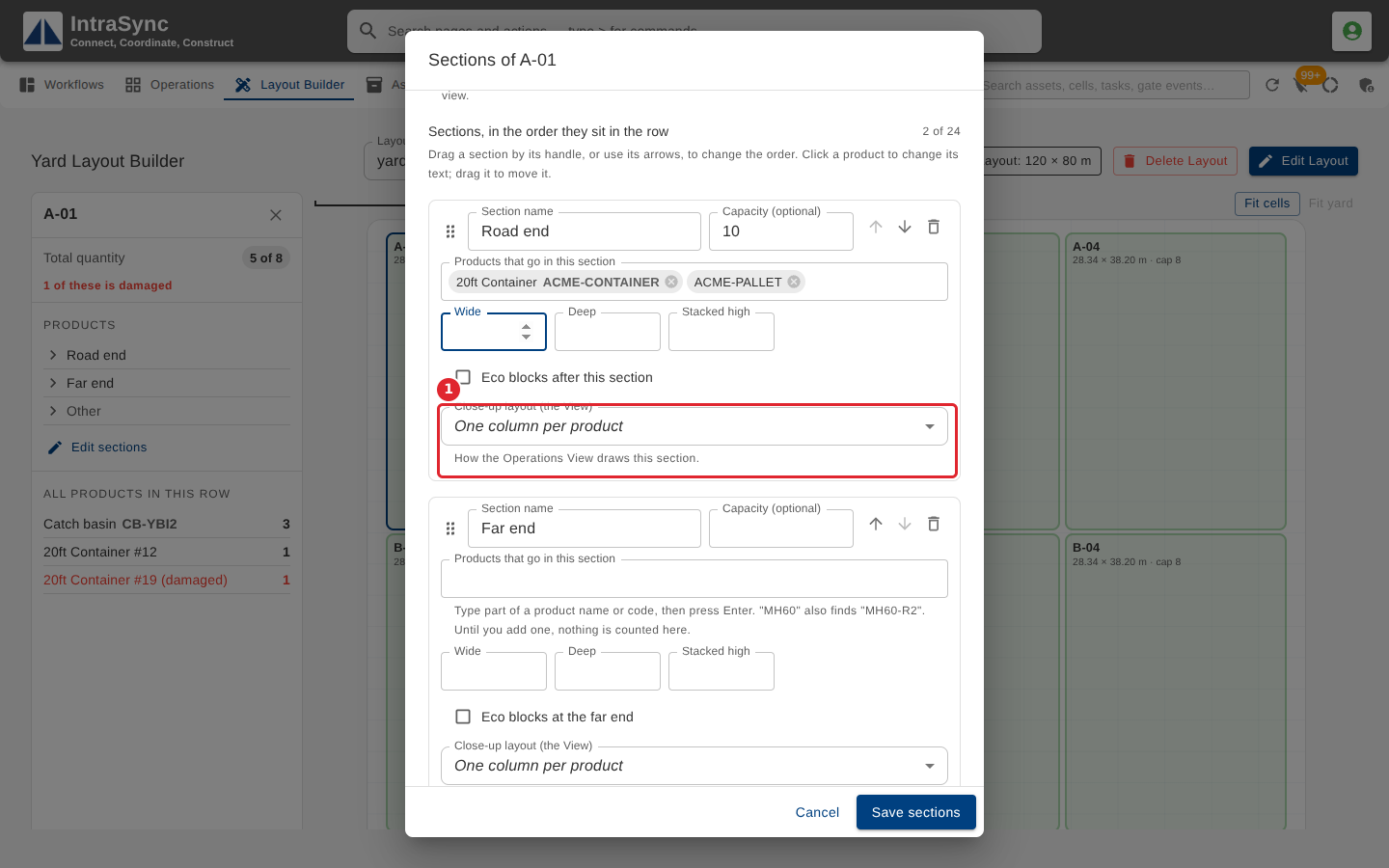
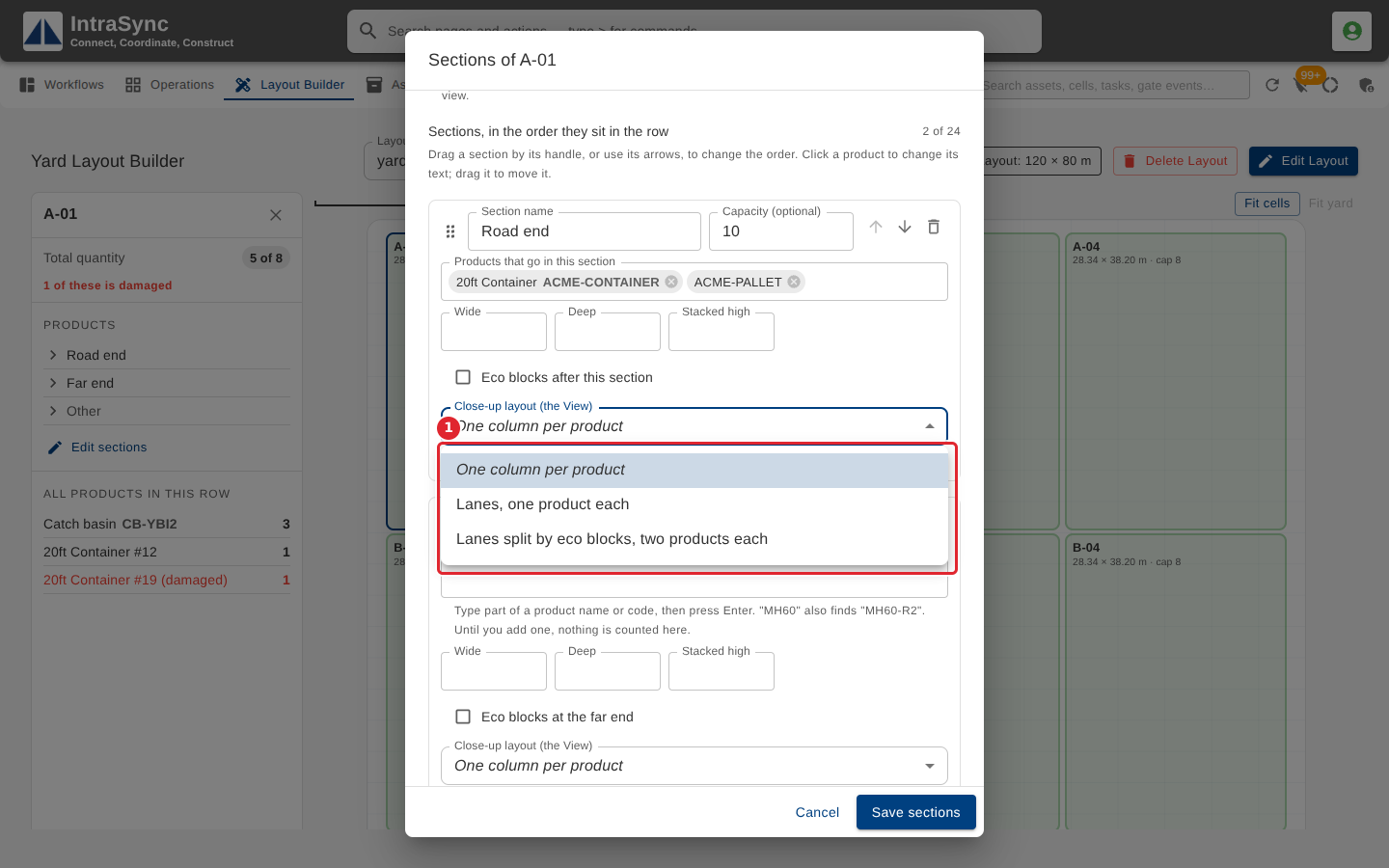
Choose how the section's View draws it: one column per product, lanes with one product each, or lanes split by eco blocks with two products each.
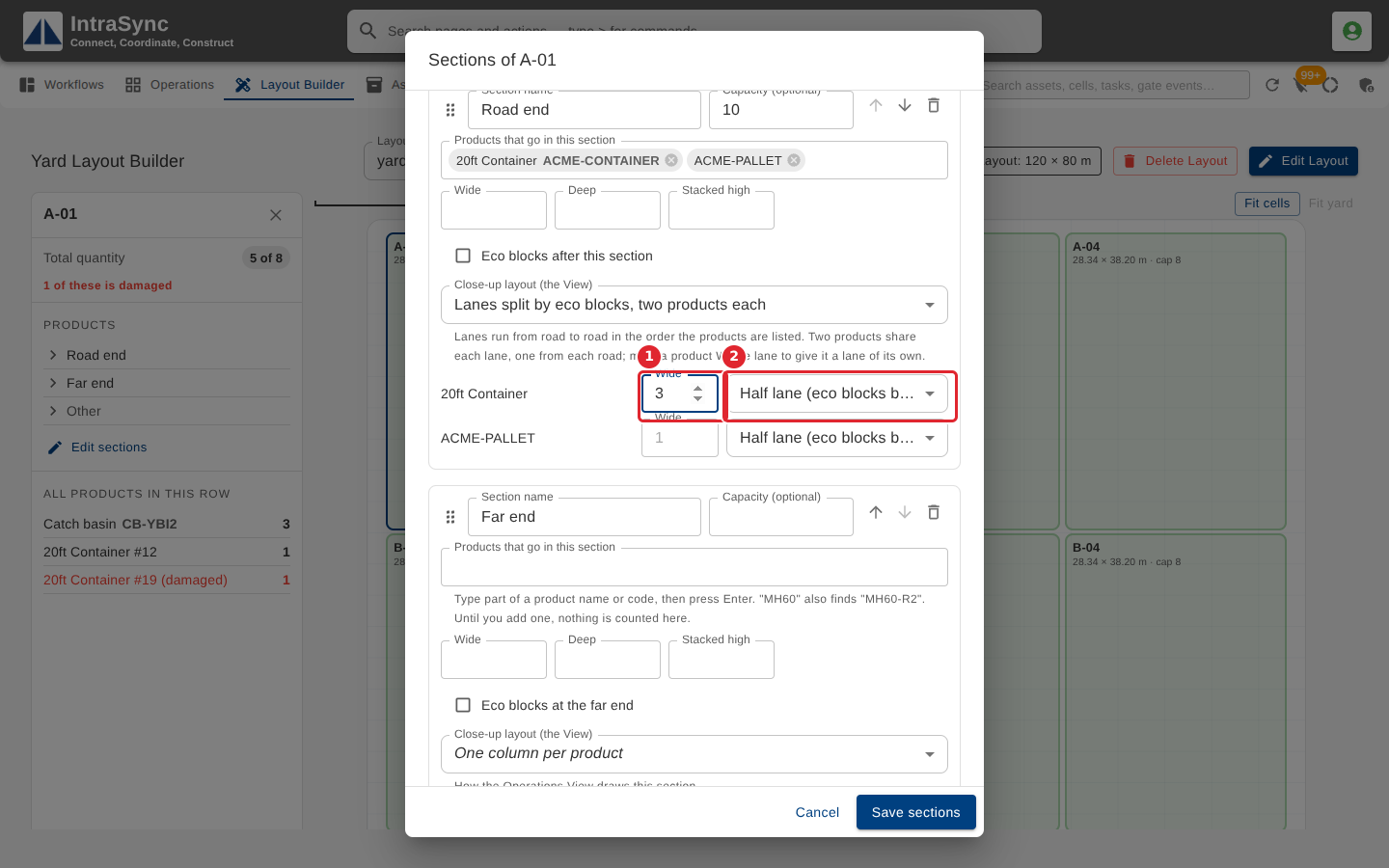
Each product the section lists gets a row. In Wide, type how many pieces wide its place is. Choose Whole lane to give a product a lane of its own, or Half lane to share a lane with the next product, with eco blocks between them.
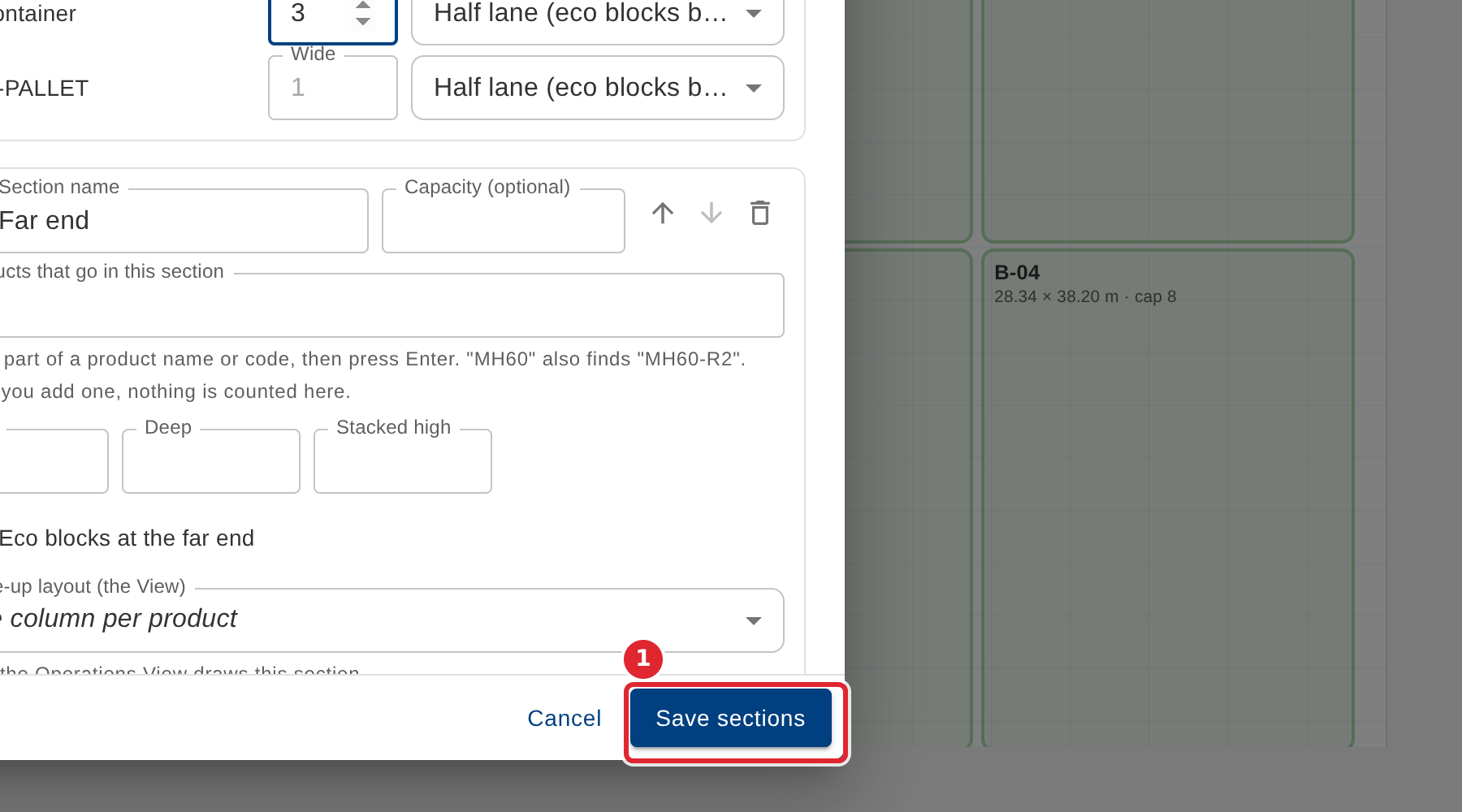
Select Save sections.
On the Operations tab, select View beside the section. It is now drawn as lanes from one road to the other, in the order the products are listed. Two products that share a lane have a line of eco blocks across the middle between them.
Tips
- One column per product is the standard: the View draws one equal column for each product the section lists.
- Lanes run from road to road in the order the section lists its products. To change the order, reorder the products.
- With Lanes, one product each, mark two products next to each other Half lane to split a lane between them.
- With Lanes split by eco blocks, two products share each lane, one worked from each road. Mark a product Whole lane to give it a lane of its own.
- Wide is a whole number from 1 to 999. Left empty, the product's place is one piece wide.
- A Half lane product with no Half lane product after it keeps its lane, and the other half is drawn as a free half lane.
- If you rename a product in the section's list, set its Wide and lane again.
- If close-up layouts are turned off later, a layout already saved is kept, and the View goes back to one column per product.