Yard Management guide · section 8 of 44
List what goes in each section of a row
Say which products each section of a row holds, so anyone can see what belongs there and how many of each are in place.
Before you start
- The row is split into sections. See Split a row into sections.
Steps
In the pictures, a numbered red box marks where to click or type. Where a picture has more than one box, the numbers give the order.
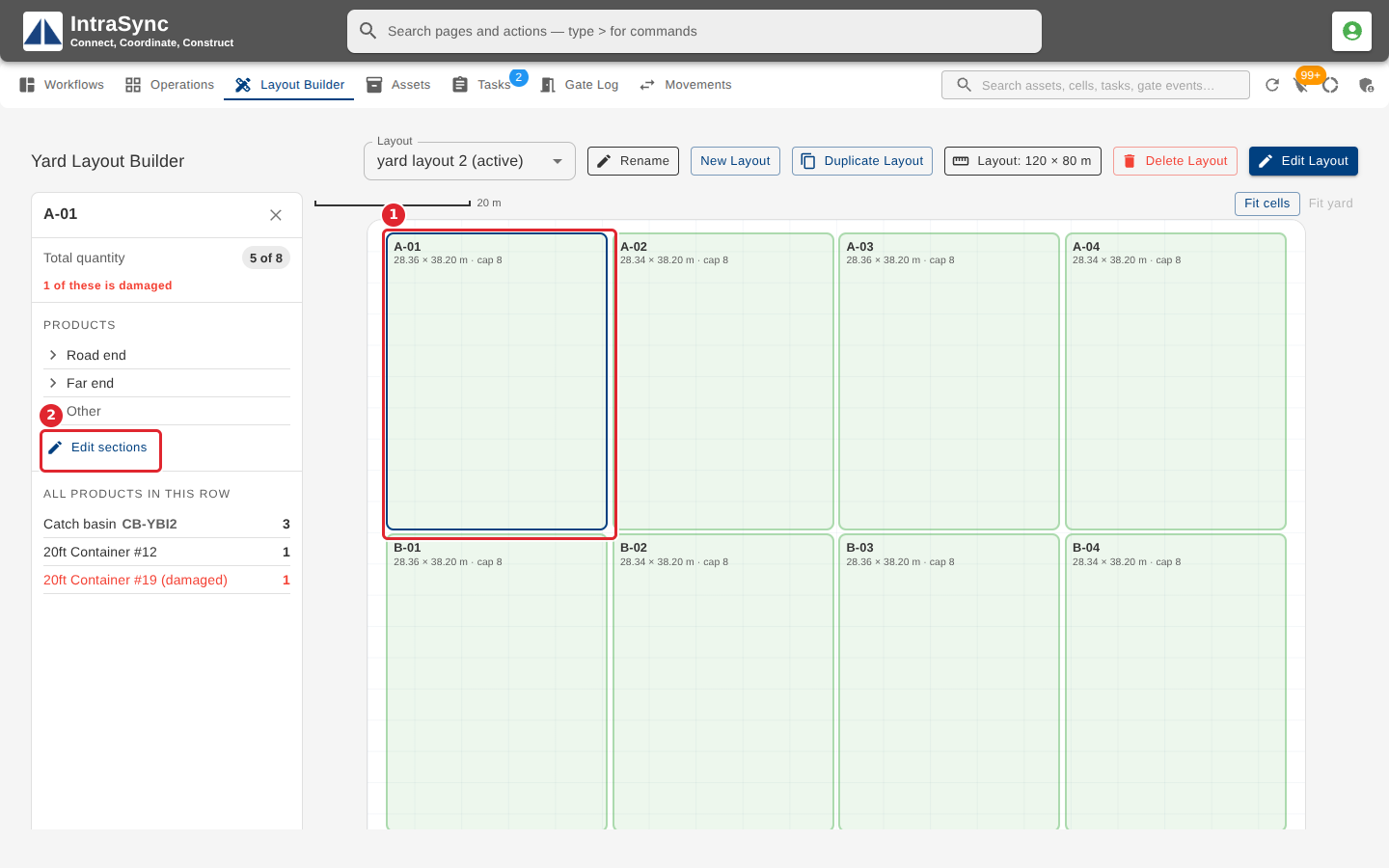
On the Layout Builder tab, select the row, then select Edit sections.
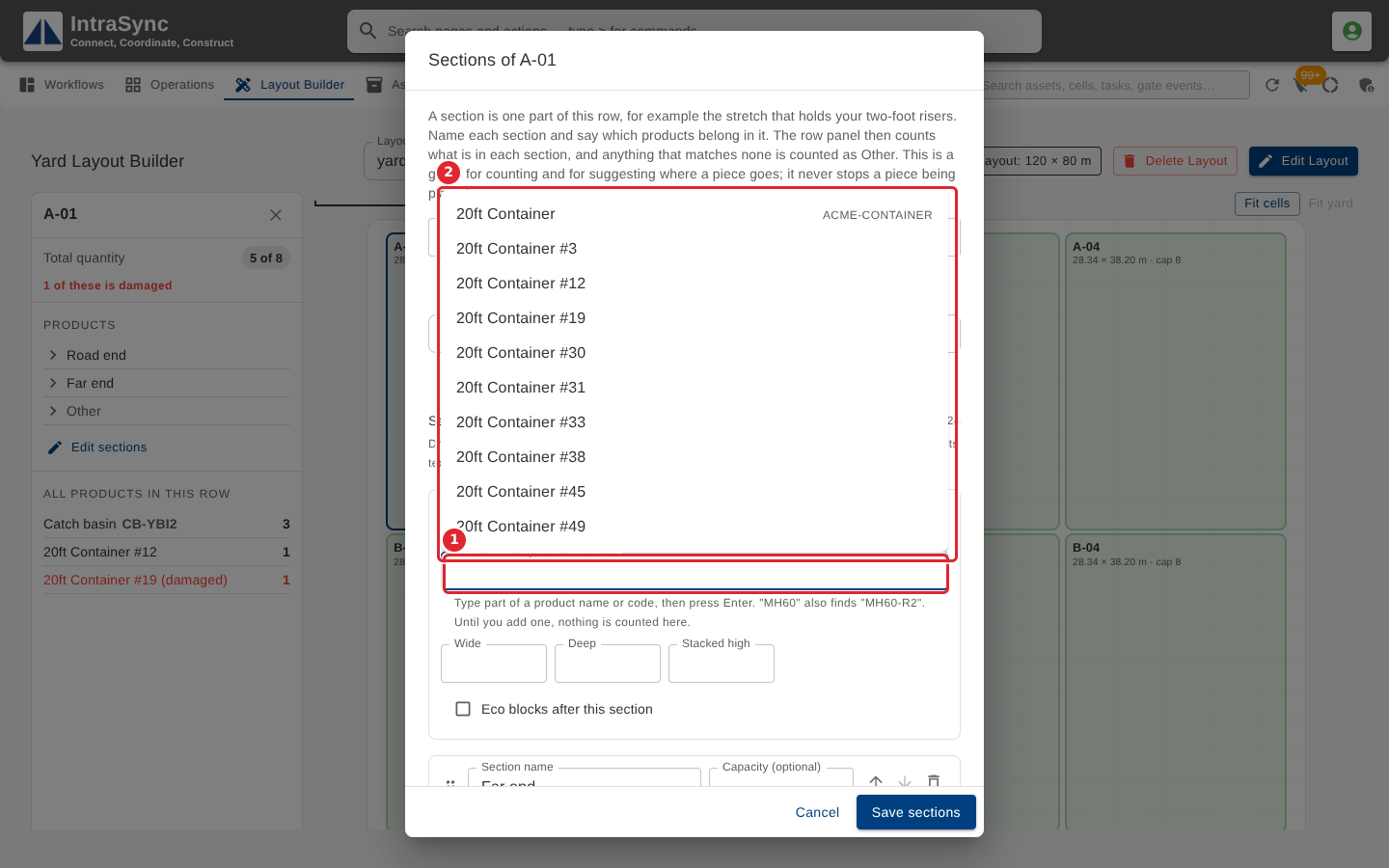
In Products that go in this section, type part of a product name or code, then choose it from the list or press Enter. Add each product the section holds, in the order you want them listed.
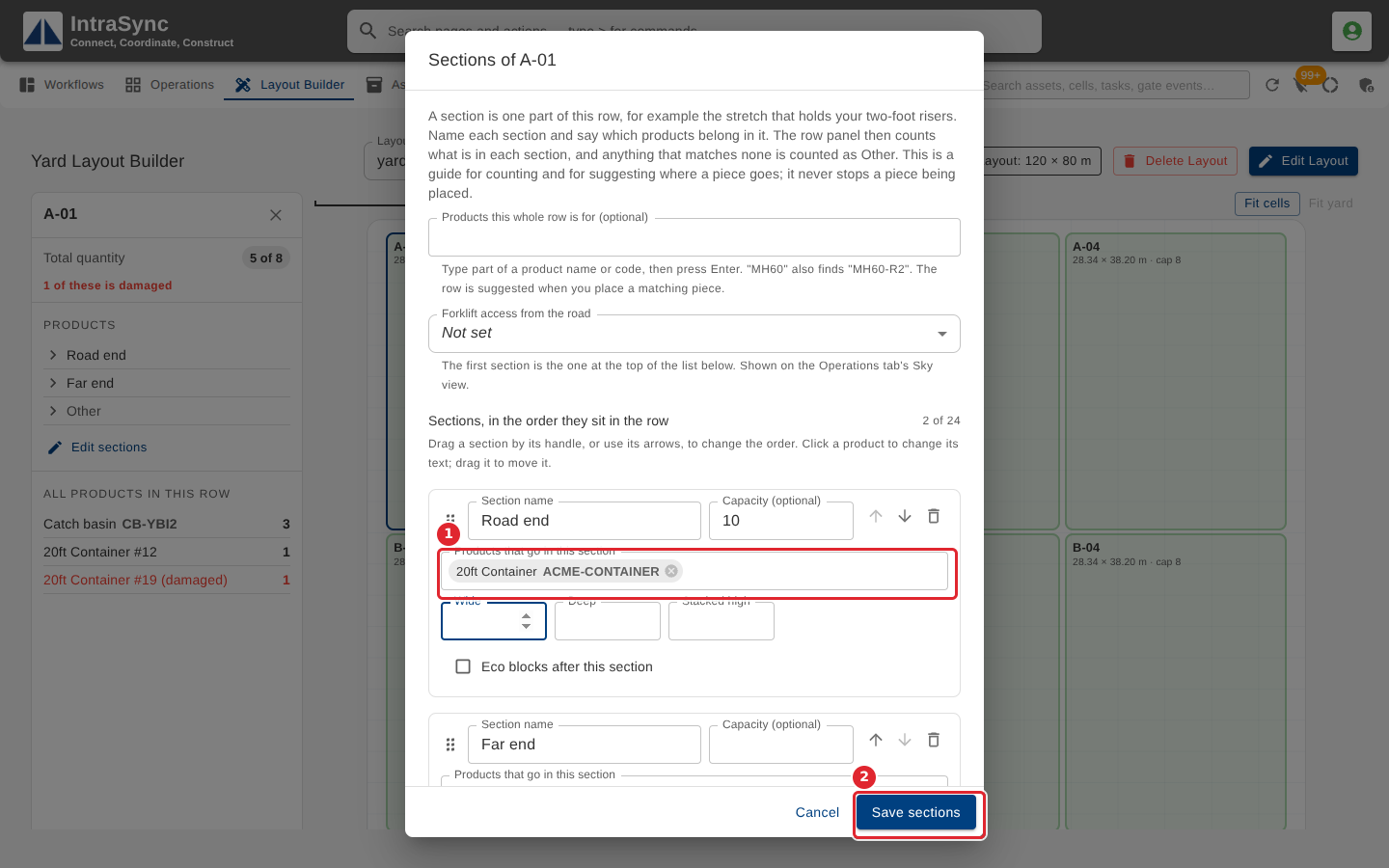
Each product you add is shown in the section. Then select Save sections.
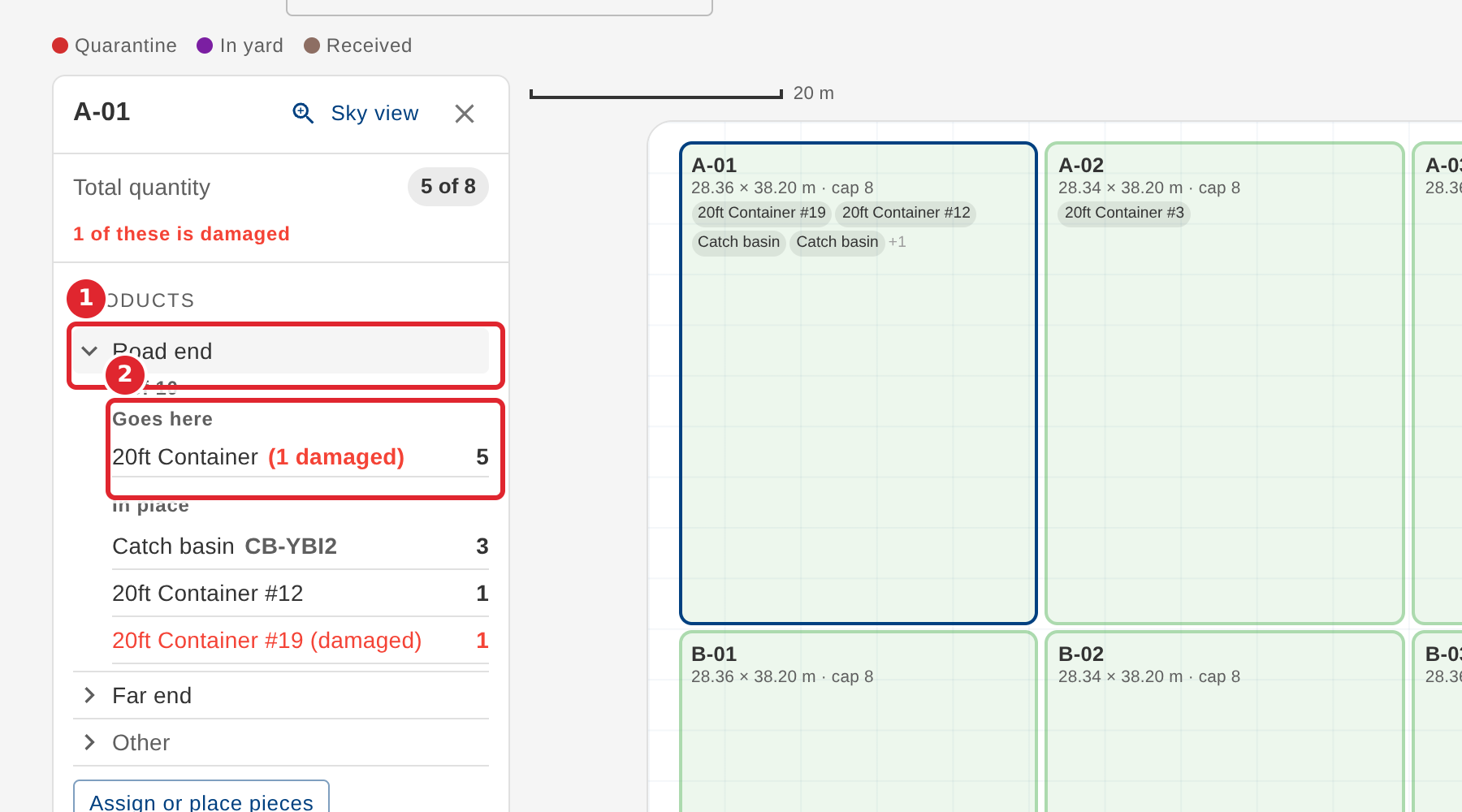
On the Operations tab, select the row and open the section. Goes here lists the products the section holds, each with how many are in place now.
Tips
- Until a section lists a product, nothing is counted there.
- An entry can be up to 250 characters, so a full catalogue entry can be added as your old system lists it.
- An entry written as a code, a dash and a description also counts a piece whose product code is exactly that code.
- A piece goes to the first listed product it matches, so put the most specific products first.
- Where pieces of a product in place are damaged, Goes here says how many, in red.