Split a row into sections
Divide a long row into named parts, such as the end nearest the road, so the yard can count what is in each part and suggest where a piece should go.
Before you start
- Open the Layout Builder tab. Do not start an editing session.
Steps
In the pictures, a numbered red box marks where to click or type. Where a picture has more than one box, the numbers give the order.
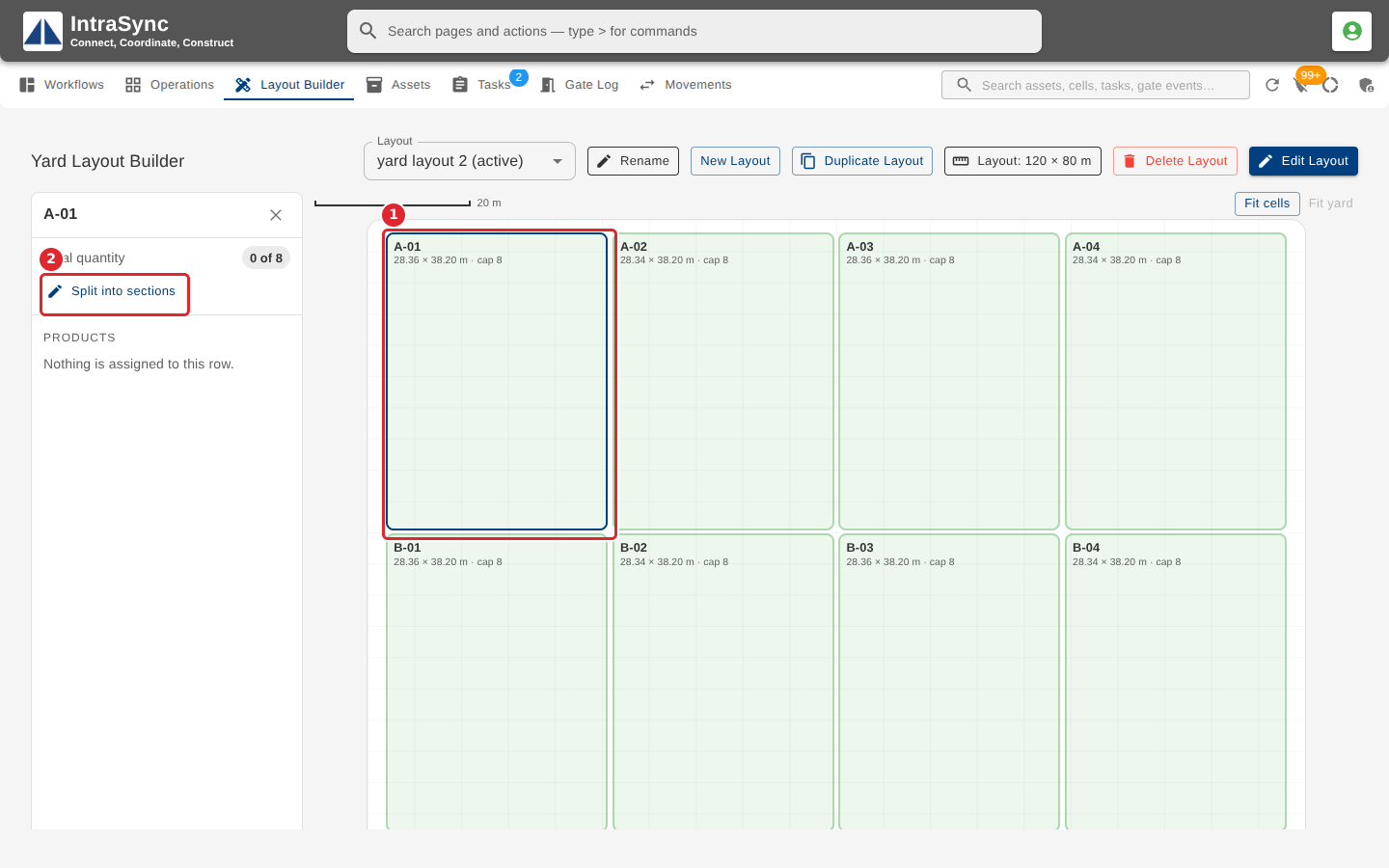
On the Layout Builder tab, select a row. Its summary opens on the left. Select Split into sections.
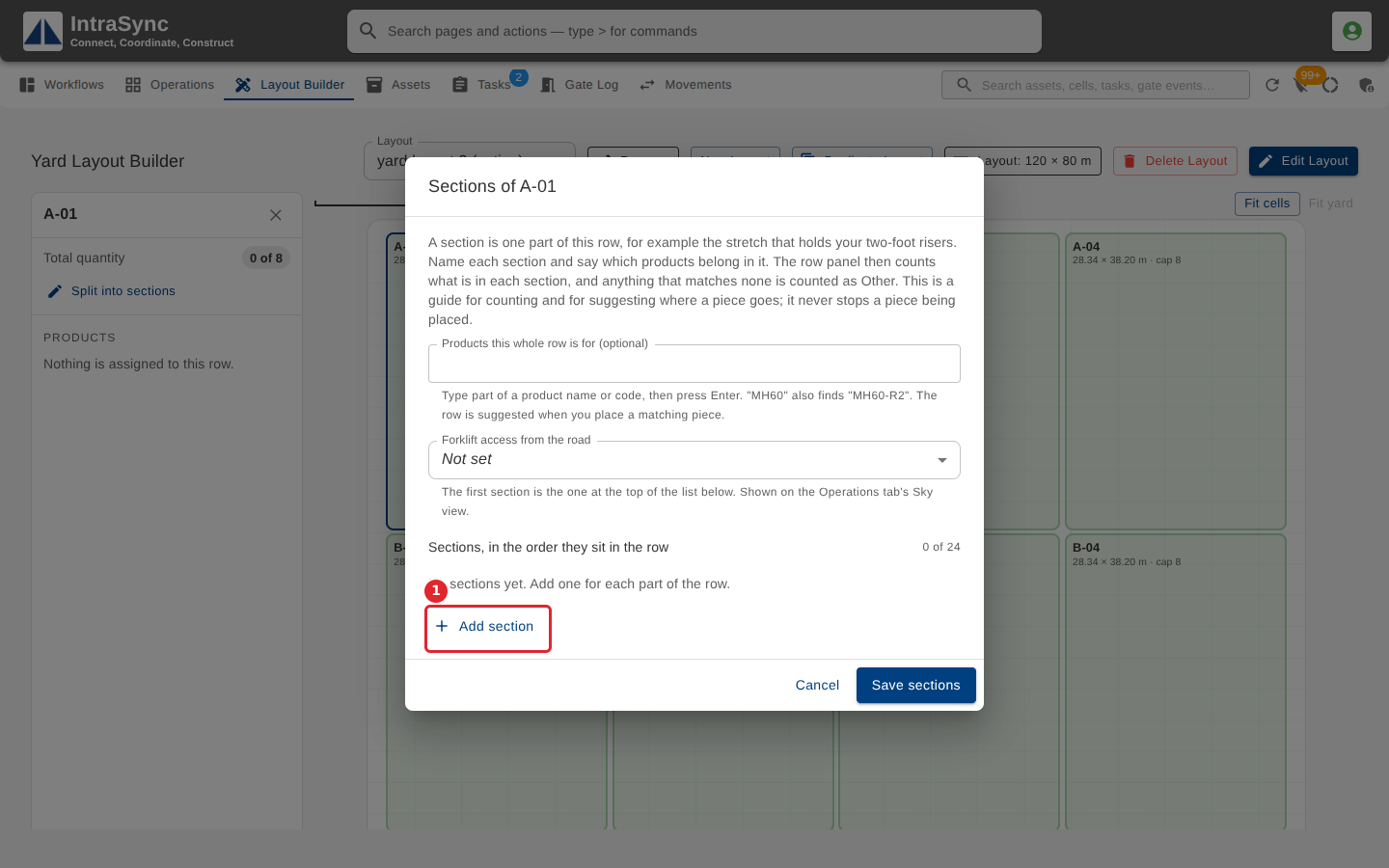
In the Sections window, select Add section once for each section, in the order they sit along the row.
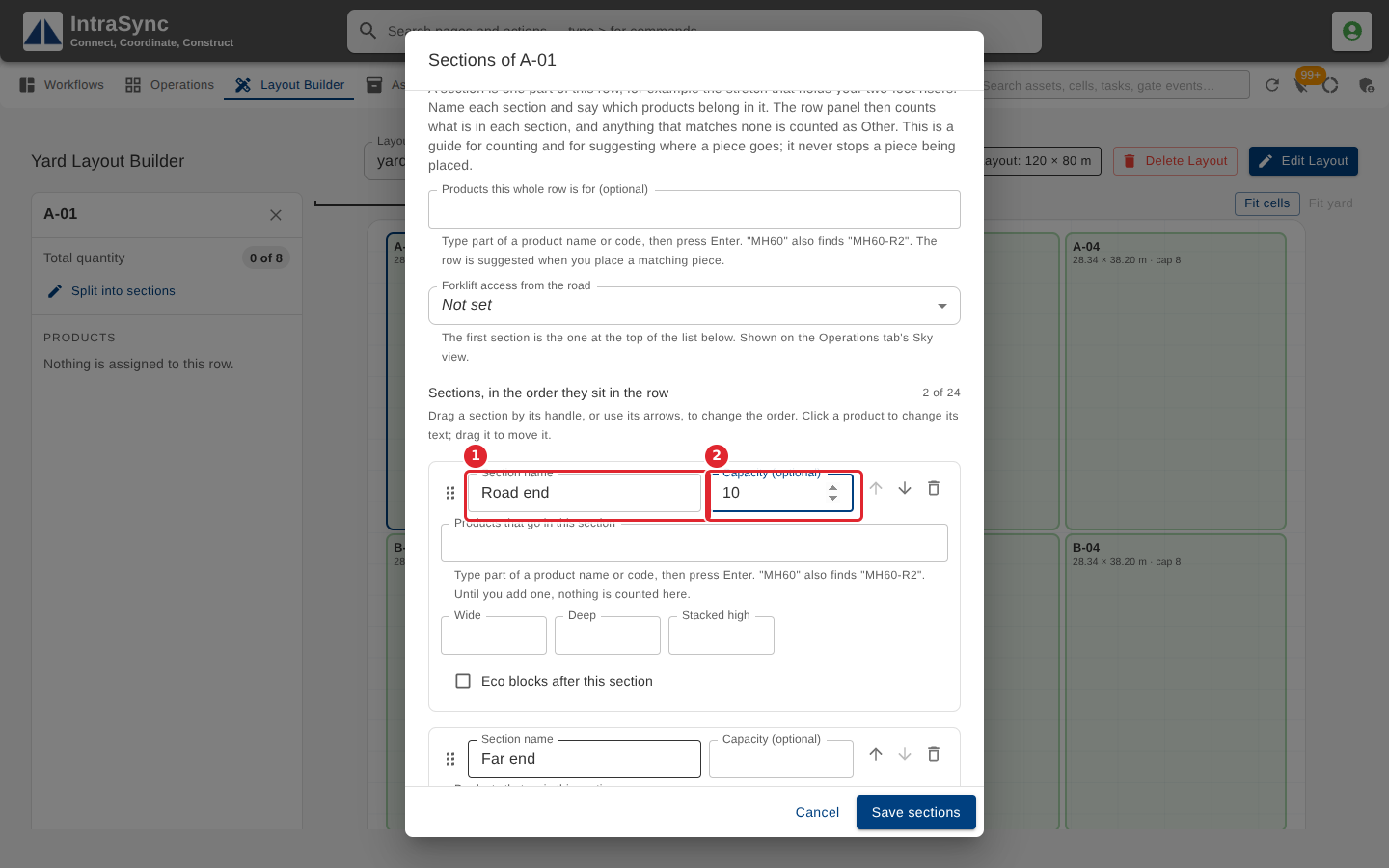
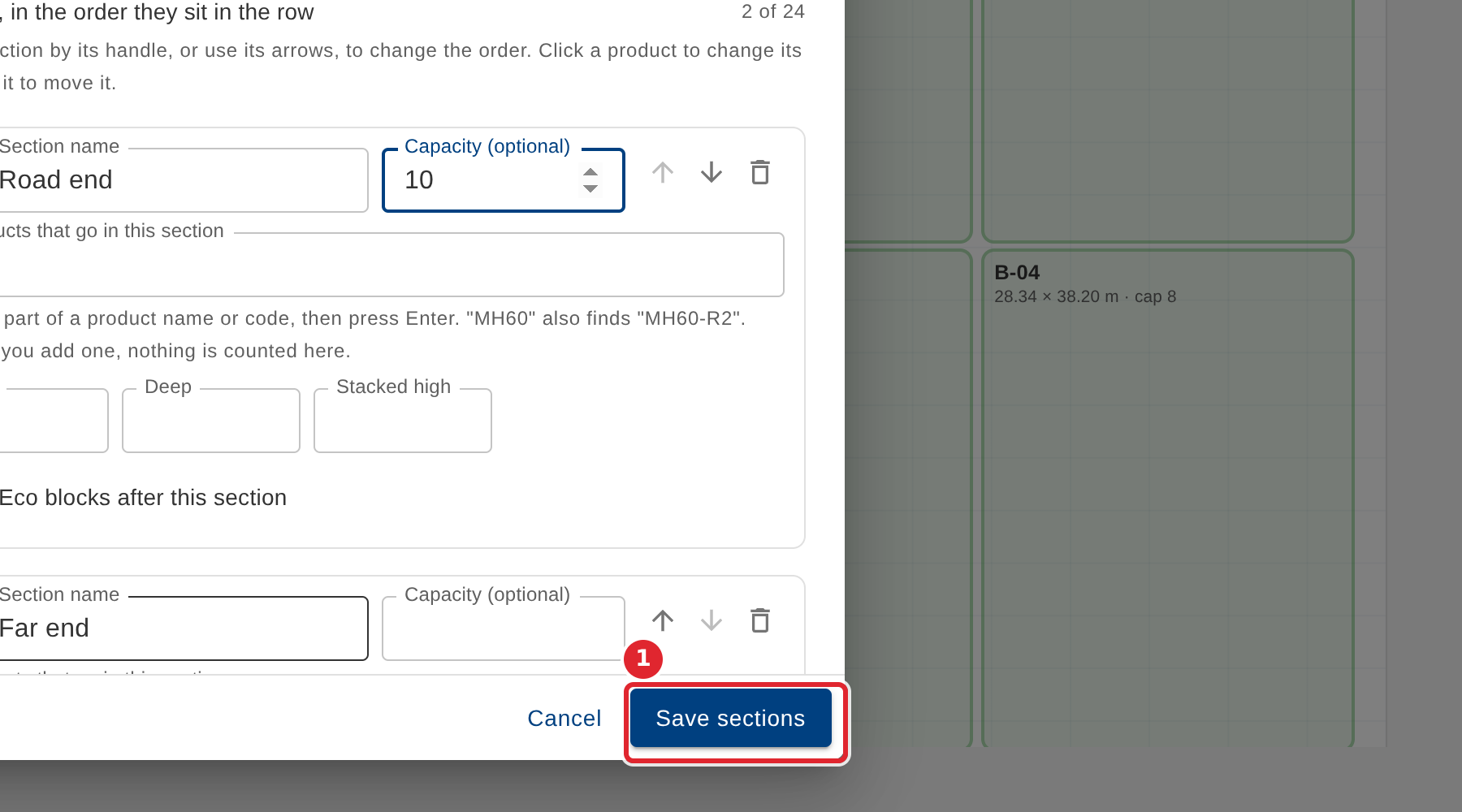
Give each section a name and, if you like, its own capacity.
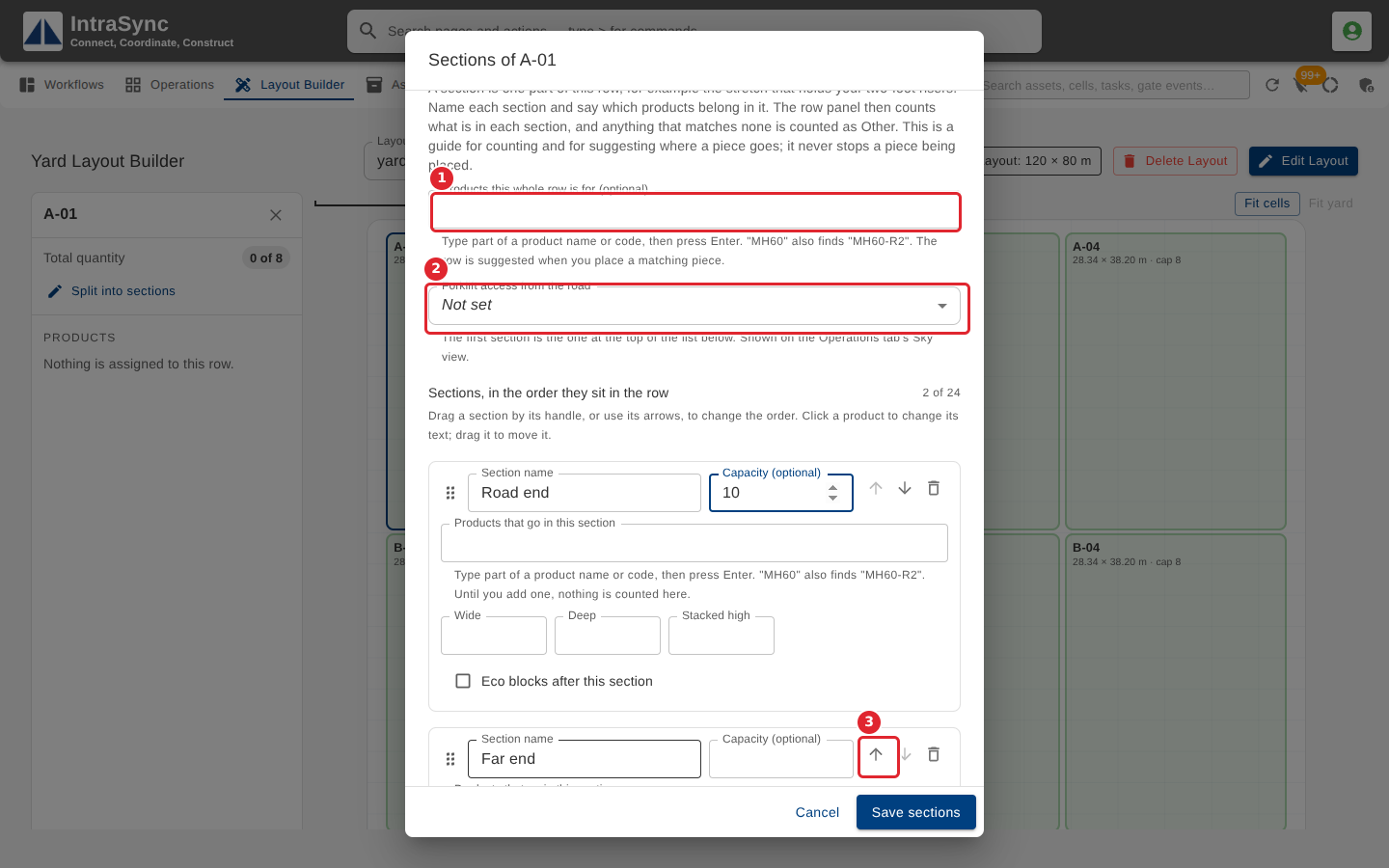
Optionally, say which products the whole row and each section are for, and where a forklift can reach the row from the road. Use the arrows to reorder sections.
Select Save sections. It stays unavailable while a section has no name.
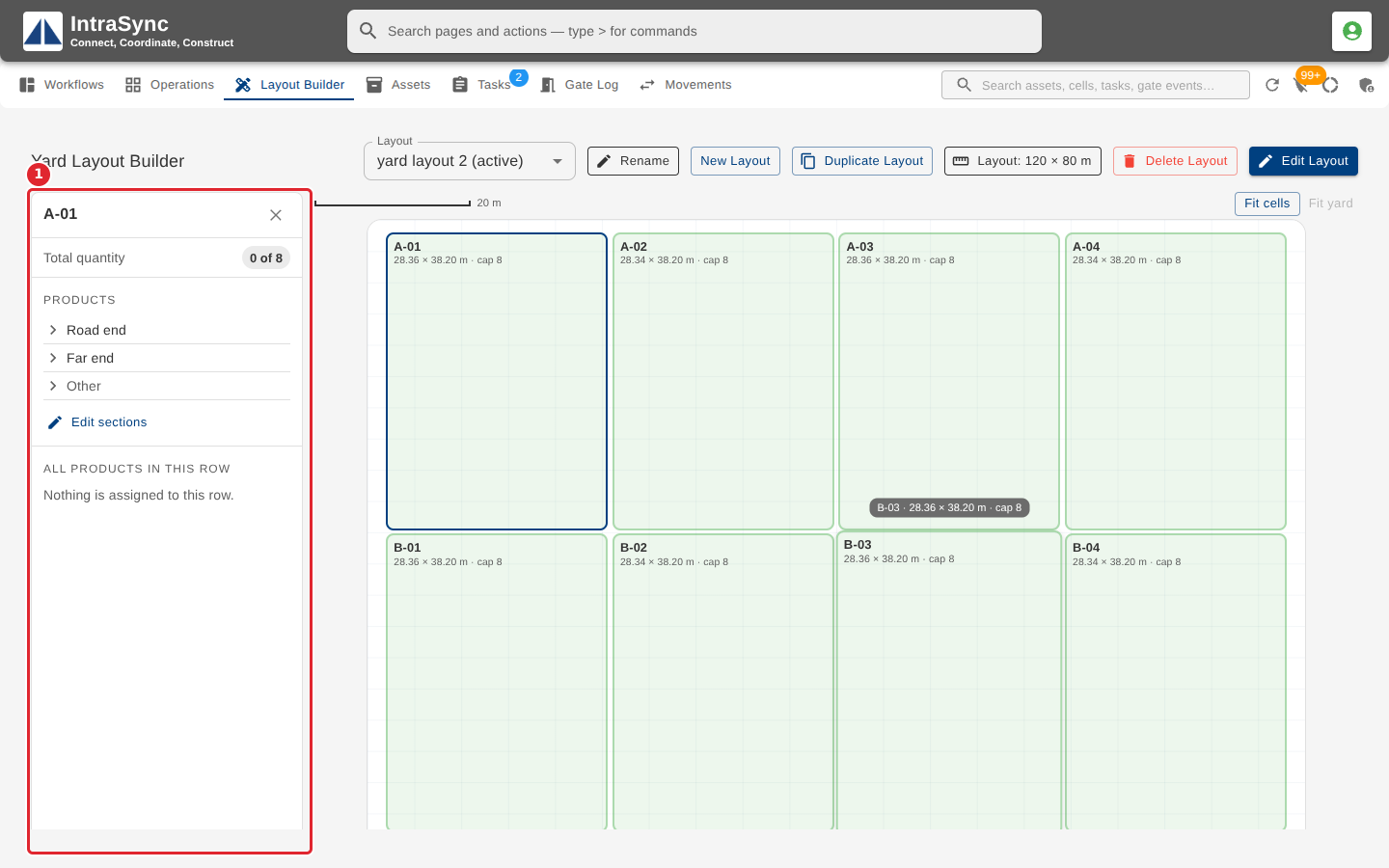
The row's summary now lists its sections. Select Edit sections to change them later.
Tips
- Sections guide counting and suggestions. They never stop a piece being placed.
- Pieces that match no section are counted as Other.
- A section needs a name, under 61 characters. Capacity must be a whole number, or left empty.
- Wide, deep and stacked high, if you use them, are whole numbers from 1 to 999.
- To add a product, type part of its name or code and press Enter. A short code also finds the longer codes that start with it.