Put back or dispose of a trashed piece
Review every trashed piece, return one to the yard, or remove one for good.
Watch this in the video (4:30)
Before you start
- Anyone who can open Trashed pieces can read the list. Putting back and disposing of pieces need the roles your company allows.
Steps
In the pictures, a numbered red box marks where to click or type. Where a picture has more than one box, the numbers give the order.
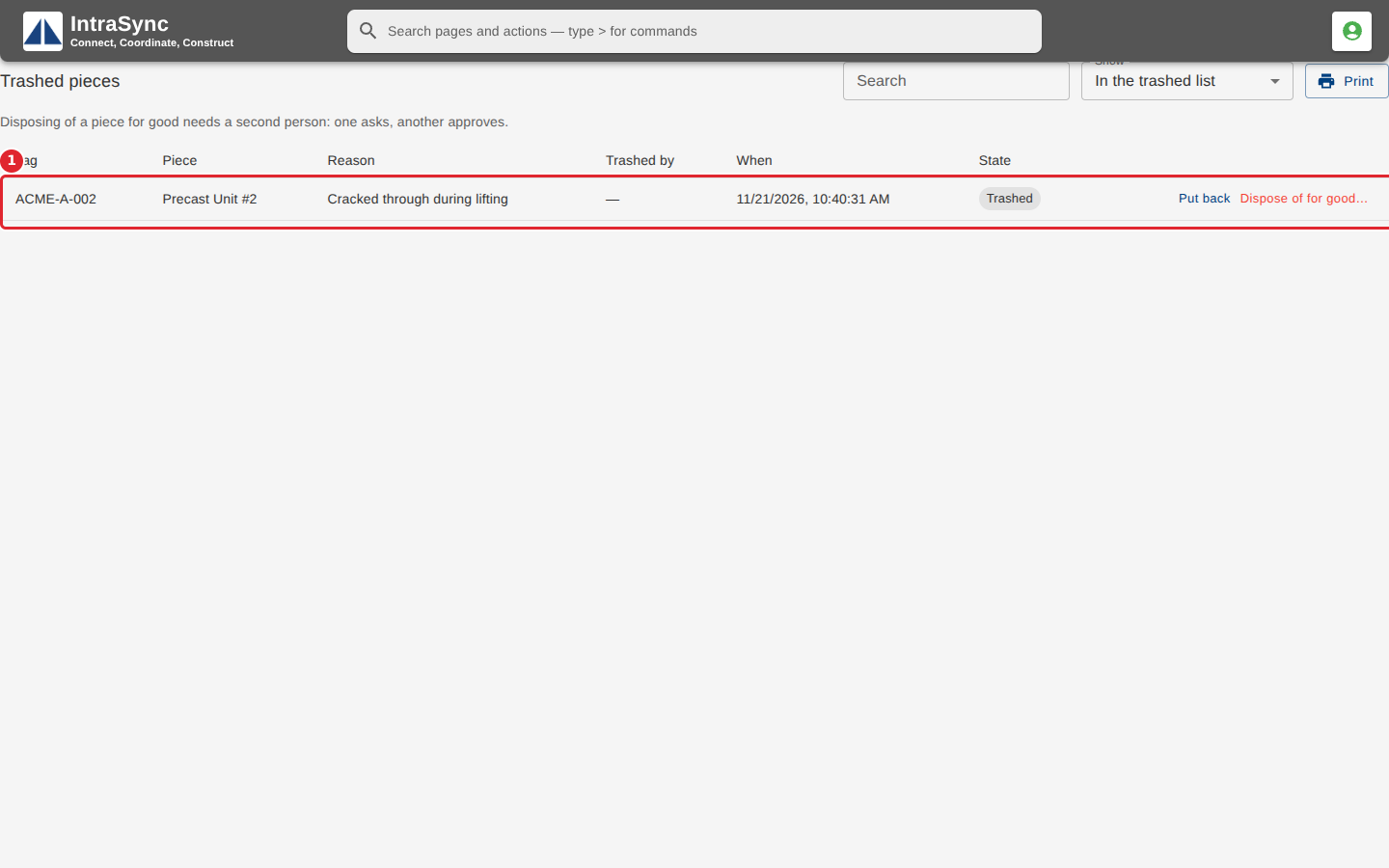
Open Trashed pieces. Each row shows the piece, why it was trashed, who trashed it, when, and its state.
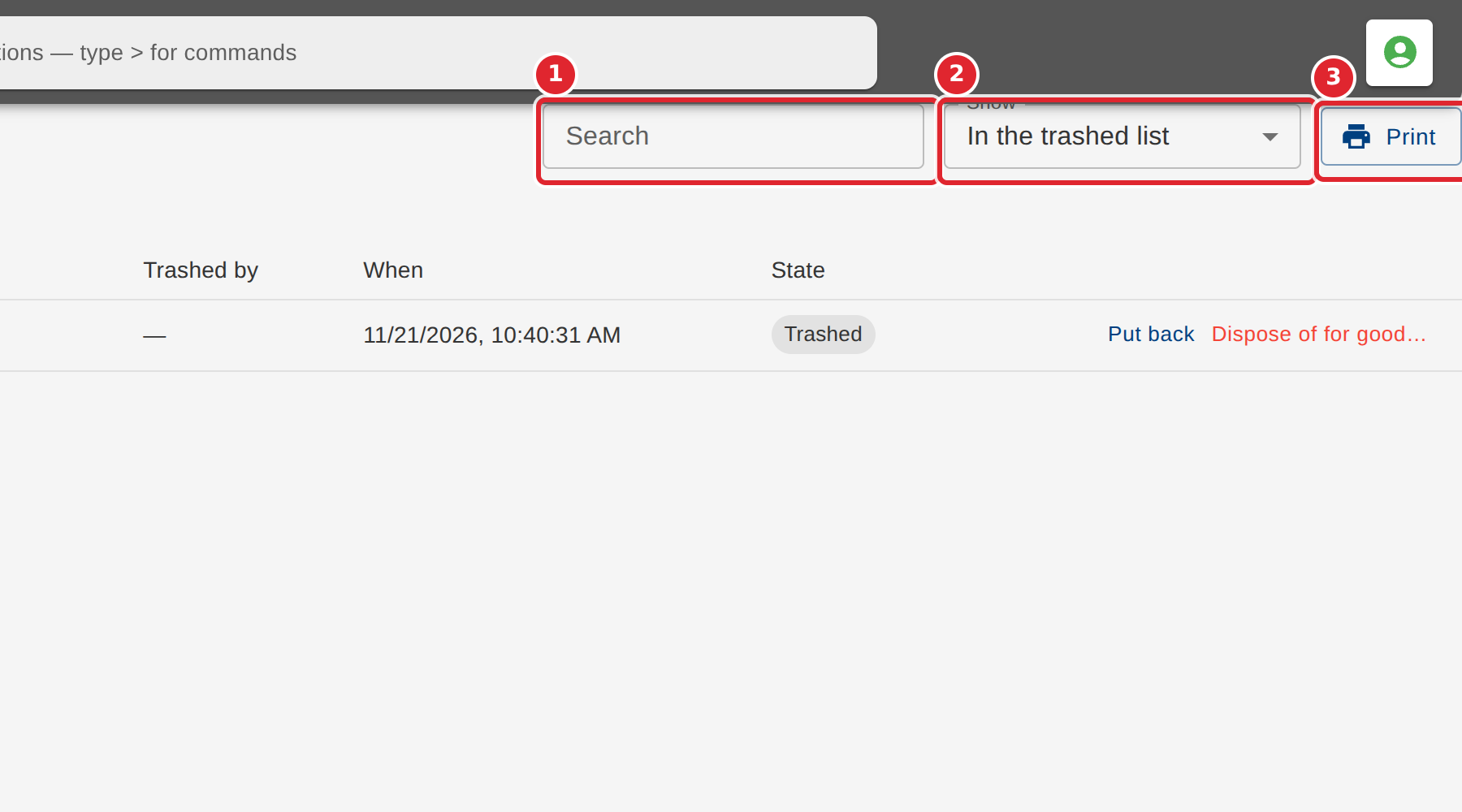
Use Search to find a piece, Show to switch between the open list, pieces waiting for approval, pieces put back, pieces disposed of, or all, and Print for a paper copy of the list.
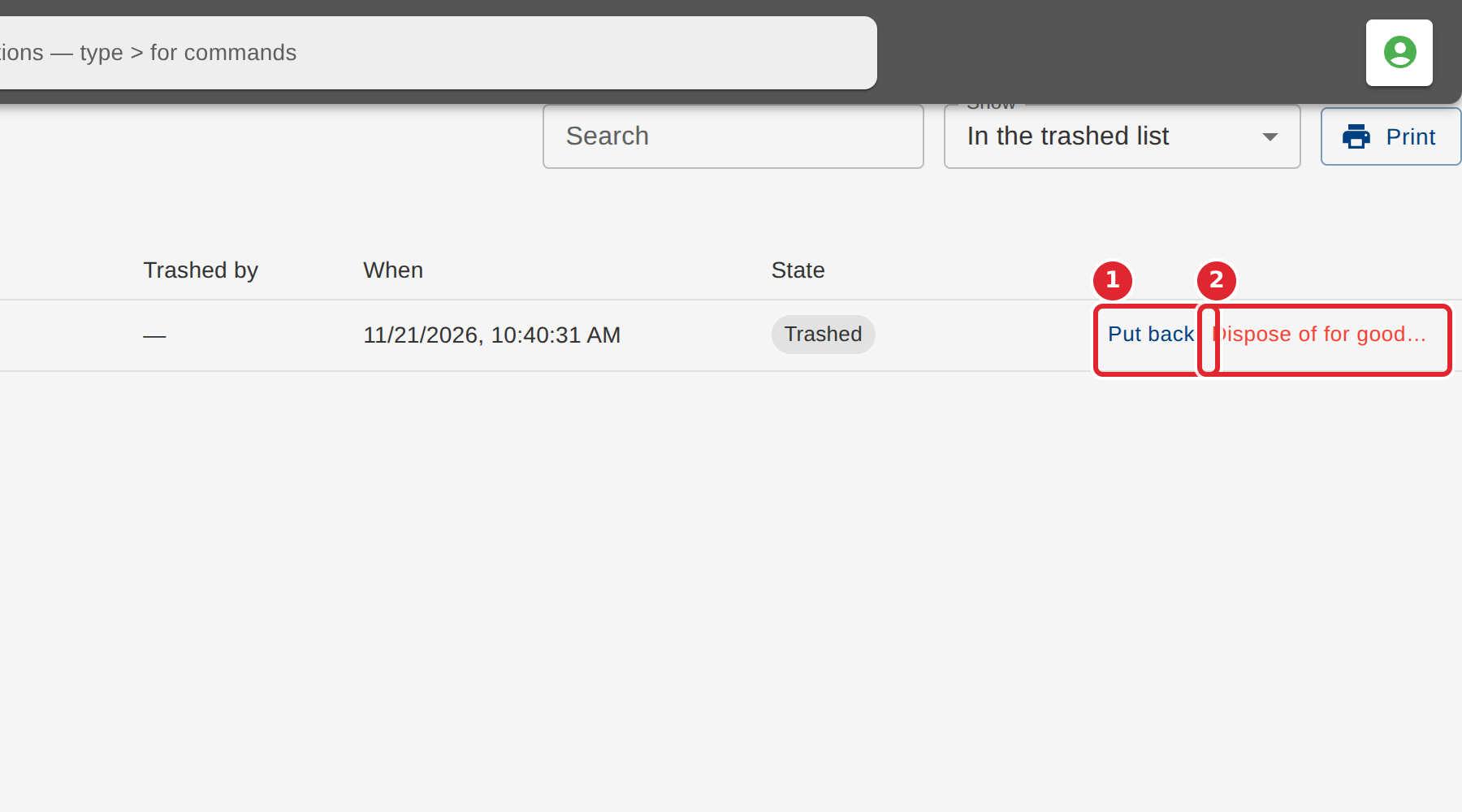
Select Put back to return a piece to the yard, or Dispose of for good… to remove it. Disposing of a piece may need a second person: one asks, another approves.
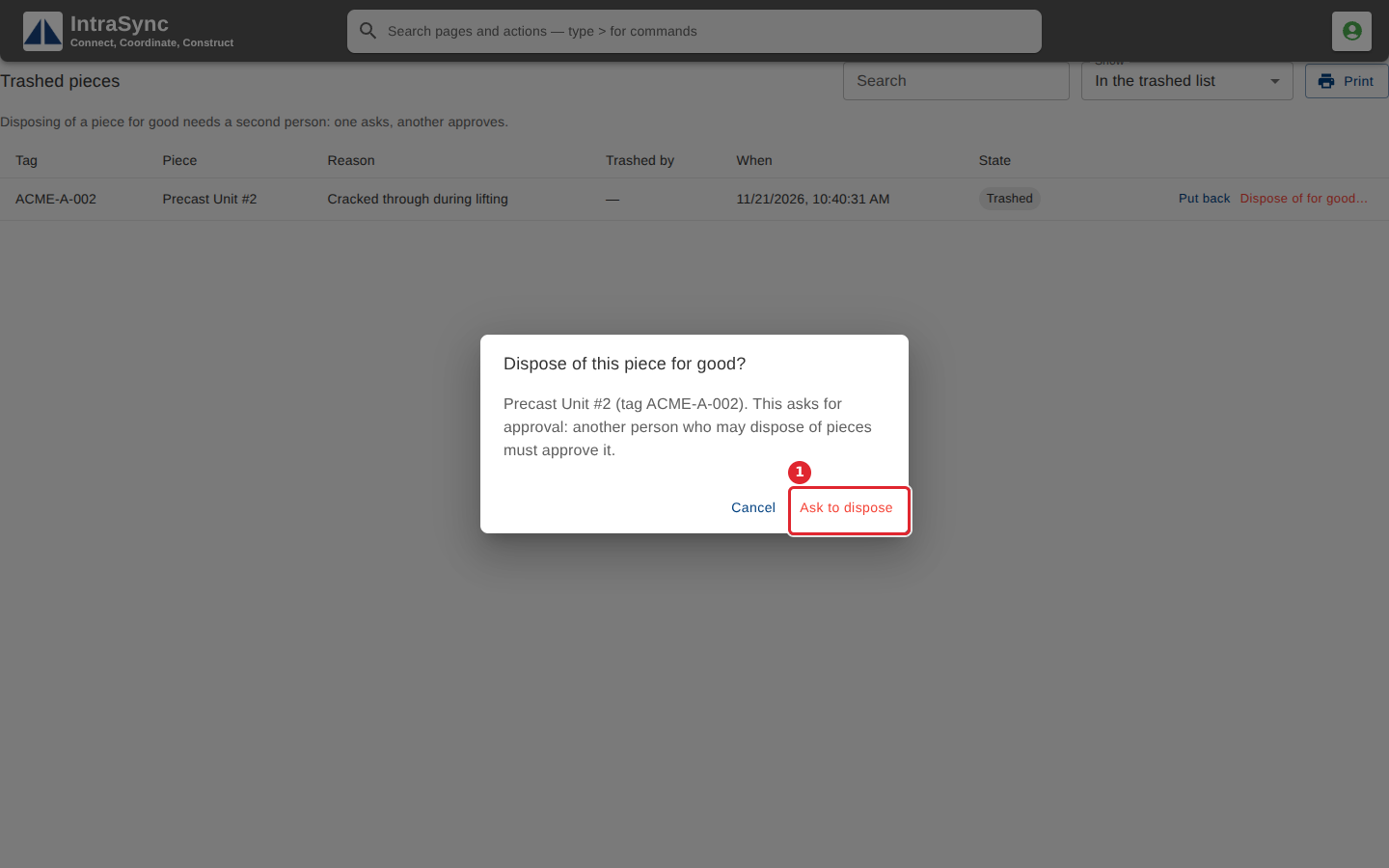
Confirm in the dialog. When approval is needed, the button reads Ask to dispose and the piece waits for another person who may dispose of pieces.
Tips
- When your company requires it, disposing of a piece needs a second person: one asks, another approves, and the piece shows as waiting for approval until then.
- A piece disposed of cannot be put back. Its record and movement history stay.